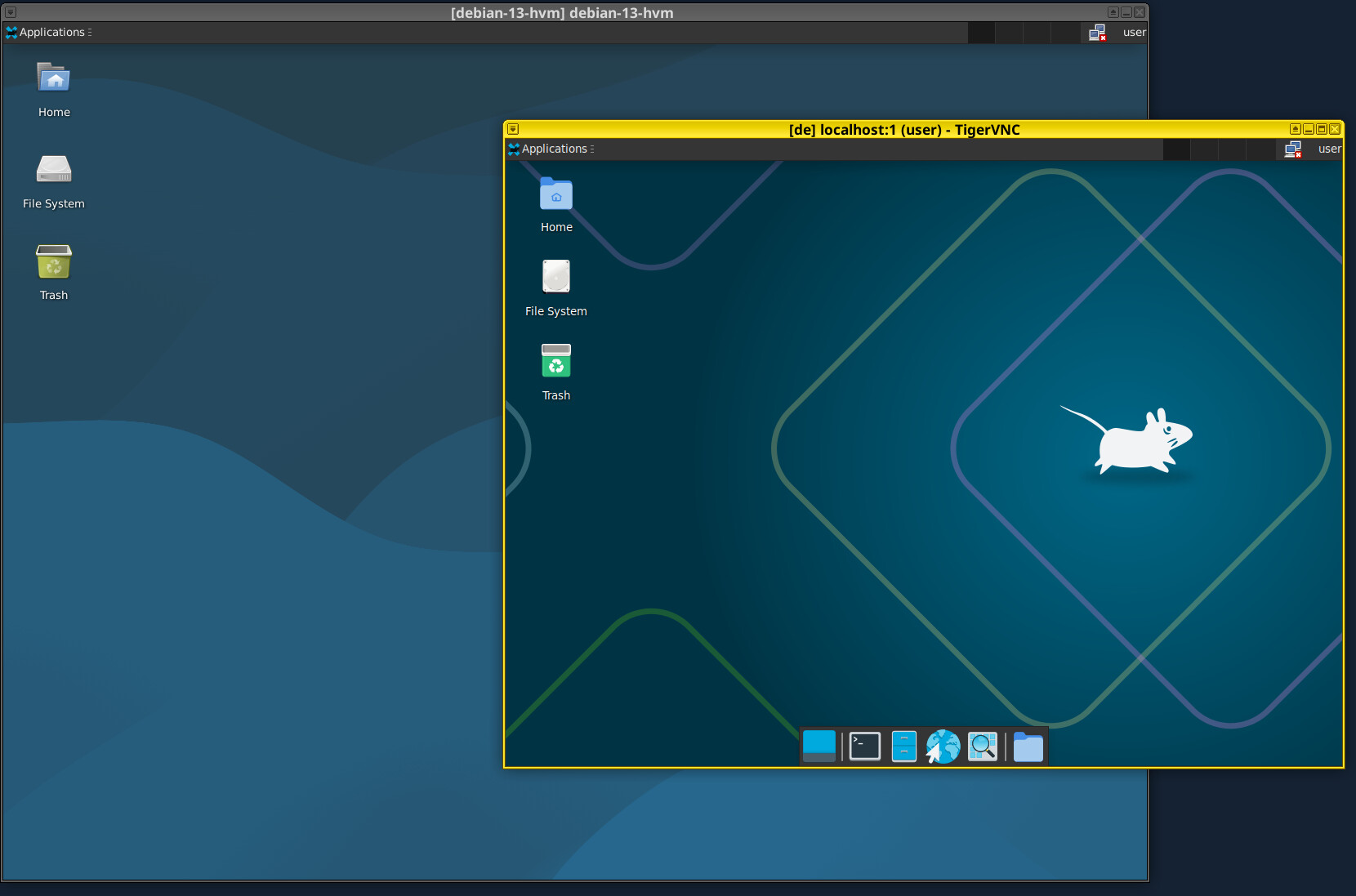
I decided to create this guide for beginners like me, who may need a Linux environment for working with video graphics. This guide consolidates tutorials from advanced users who were instrumental in helping me resolve all the issues:
- How to install Qubes Core Agent in linux distros in Qubes 4.3 (for beginners) - #19 by random1
- Rejecting hard work of qubes os developers (gui integration)
- Automatic startup of Gnome environement - #25 by unman
You can run Linux in HVM mode. it is preferable for graphics work and gaming. However, in this mode you won’t be able to share the clipboard with other VMs.
Create a new qube, select standalone or template from the types on the left. Select the template to clone from debian or fedora xfce. Click create.
Open the qube settings. Go to advanced and change virtualization mode to hvm. Set the minimum RAM to be at least 1000 or more.
You need to set a user password to login, run this command in the qube you just created:
sudo passwd user
then type in whatever password you want.
qube_name in the commands refers to the name of the your qube that was just created
To disable the gui integration in debian, you need to run these commands in dom0:
qvm-features qube_name gui_emulated 1
qvm-features qube_name no-nomodeset 1
qvm-prefs qube_name kernelopts "systemd.unit=graphical.target"
qvm-service qube_name lightdm on
commands for fedora in dom0:
qvm-features qube_name gui_emulated 1
qvm-features qube_name no-nomodeset 1
qvm-run -u root qube_name -- systemctl set-default graphical.target
qvm-run -u root qube_name -- 'echo "user" | passwd --stdin user'
qvm-prefs qube_name kernel ''
qvm-service qube_name lightdm on
qvm-shutdown qube_name
Alternatively, you can run Linux in VNC mode for simpler tasks like video recording and screencasting - it will allow you to use the clipboard sharing feature across other VMs!
In new debian template:
sudo apt install tigervnc-standalone-server tigervnc-viewer
In new template create a script:
sudo tee /usr/bin/xfce-vnc << EOF
#!/bin/sh
tigervncserver -localhost -xstartup /usr/bin/startxfce4 -geometry 1024x768 -SecurityTypes None -useold :1 && xtigervncviewer 127.0.0.1:5901 &
EOF
sudo chmod +x /usr/bin/xfce-vnc
for GNOME desktop:
sudo tee /usr/bin/gnome-vnc << EOF
#!/bin/sh
tigervncserver -localhost -xstartup /usr/bin/gnome-session -geometry 1024x768 -SecurityTypes None -useold :1 && xtigervncviewer 127.0.0.1:5901 &
EOF
sudo chmod +x /usr/bin/gnome-vnc
Whencreate a new appVM using this template.
For running new appVM in VNC enter this command in dom0:
qvm-run appvm_qube_name xfce-vnc
or
qvm-run appvm_qube_name gnome-vnc
You can also create a shortcut or menu item to run this command.
(An advantage of tigervncviewer is that you have a control menu at F8 which
allows you to run up to full screen)
For advanced graphics work and gaming, use this guide: Create a Gaming HVM