Customize Qubes OS 4.3 Login & Lock Screen (Avatar + Dark Mode)
Community Guides version-r43 configuration dom0 gui theme
If you see any errors in this guide, please inform me so I can make the necessary corrections.
This is a step‑by‑step guide for changing the user avatar and enabling a dark theme on the Qubes OS 4.3 login screen (LightDM), and for changing the avatar used by the lock screen (xfce‑screensaver). It also includes:
- An optional GUI tool (
lightdm-gtk-greeter-settings) for editing the LightDM greeter config. - A way to get an avatar image without copying a file into dom0, by using dom0 screenshots.
- A way to add a custom wallpaper so it appears in the standard Qubes wallpaper chooser.
 Bottom Line, Up Front
- Point theme & avatar in:
/etc/lightdm/lightdm-gtk-greeter.conf - Copy avatar to
~/.face
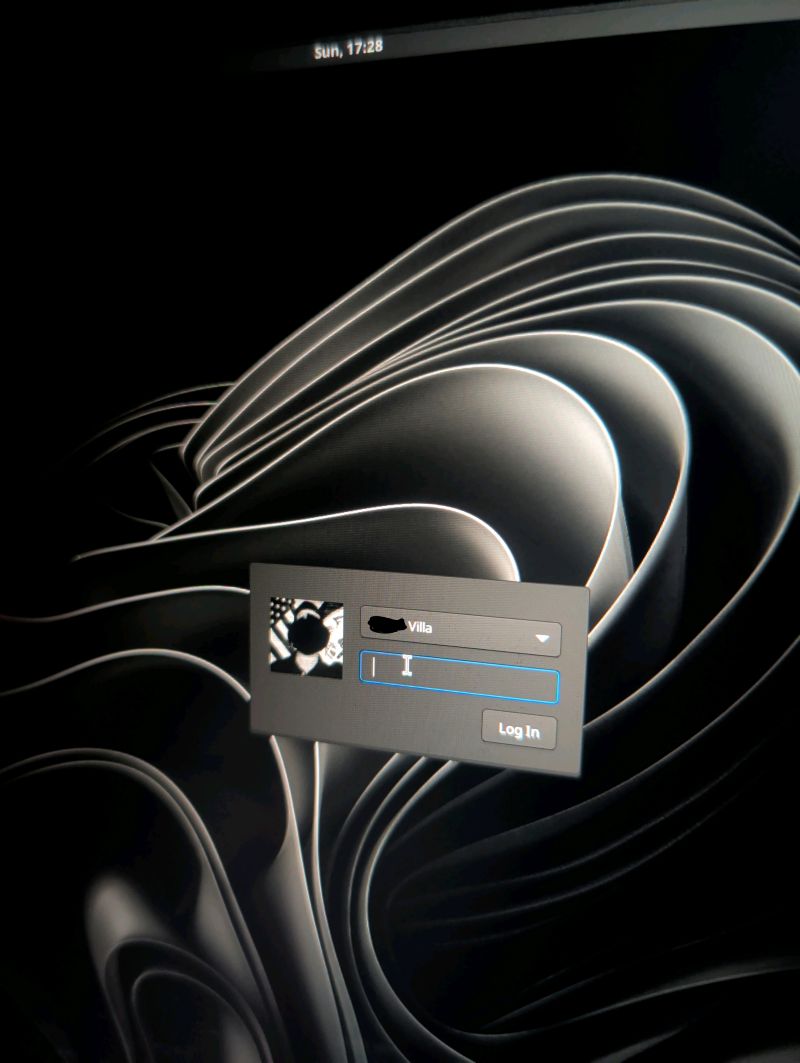
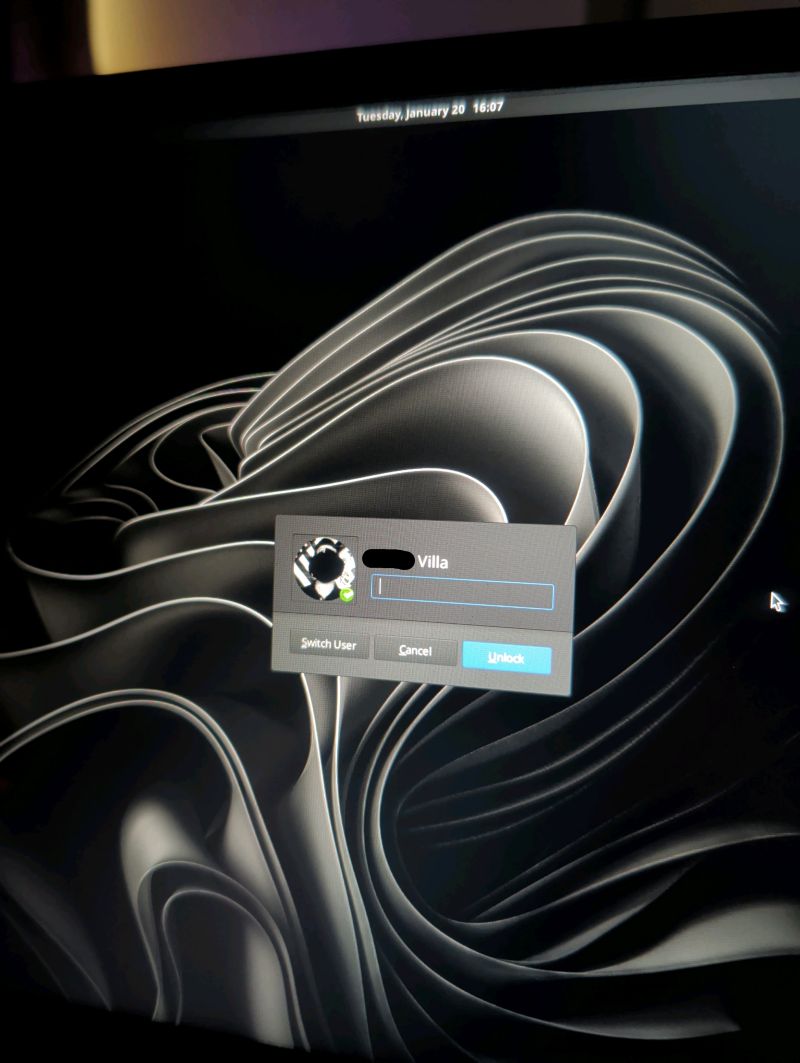
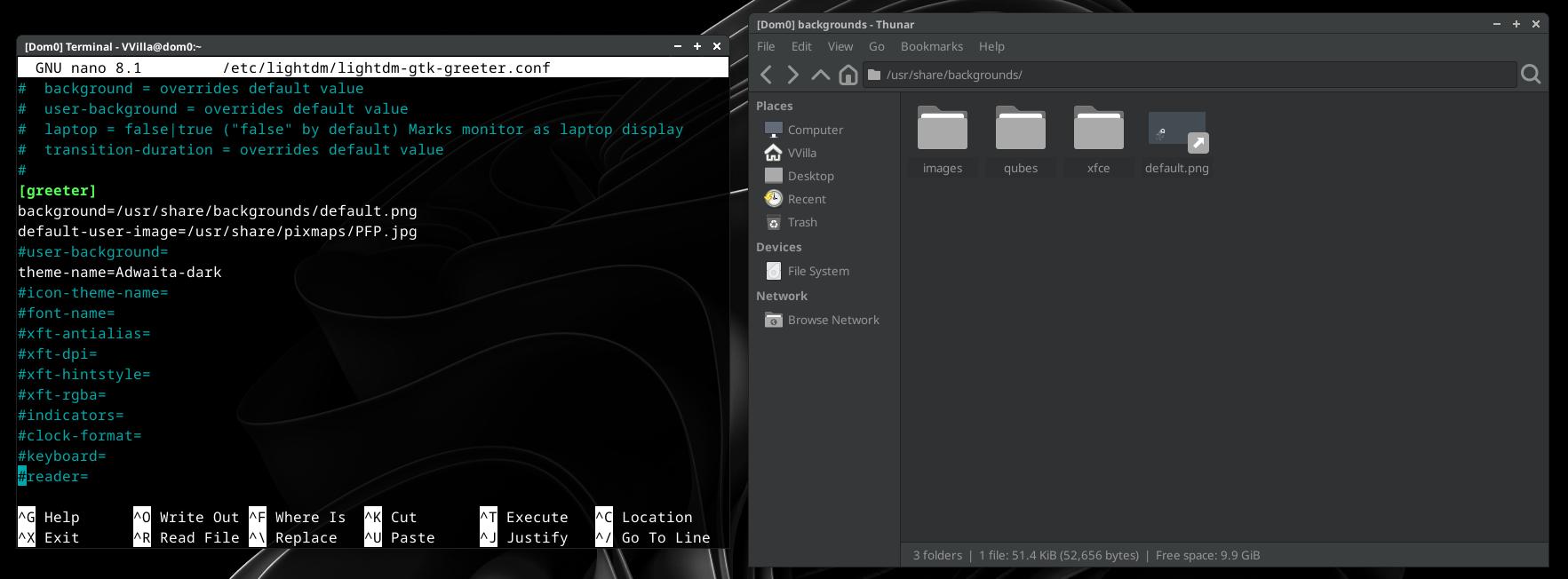
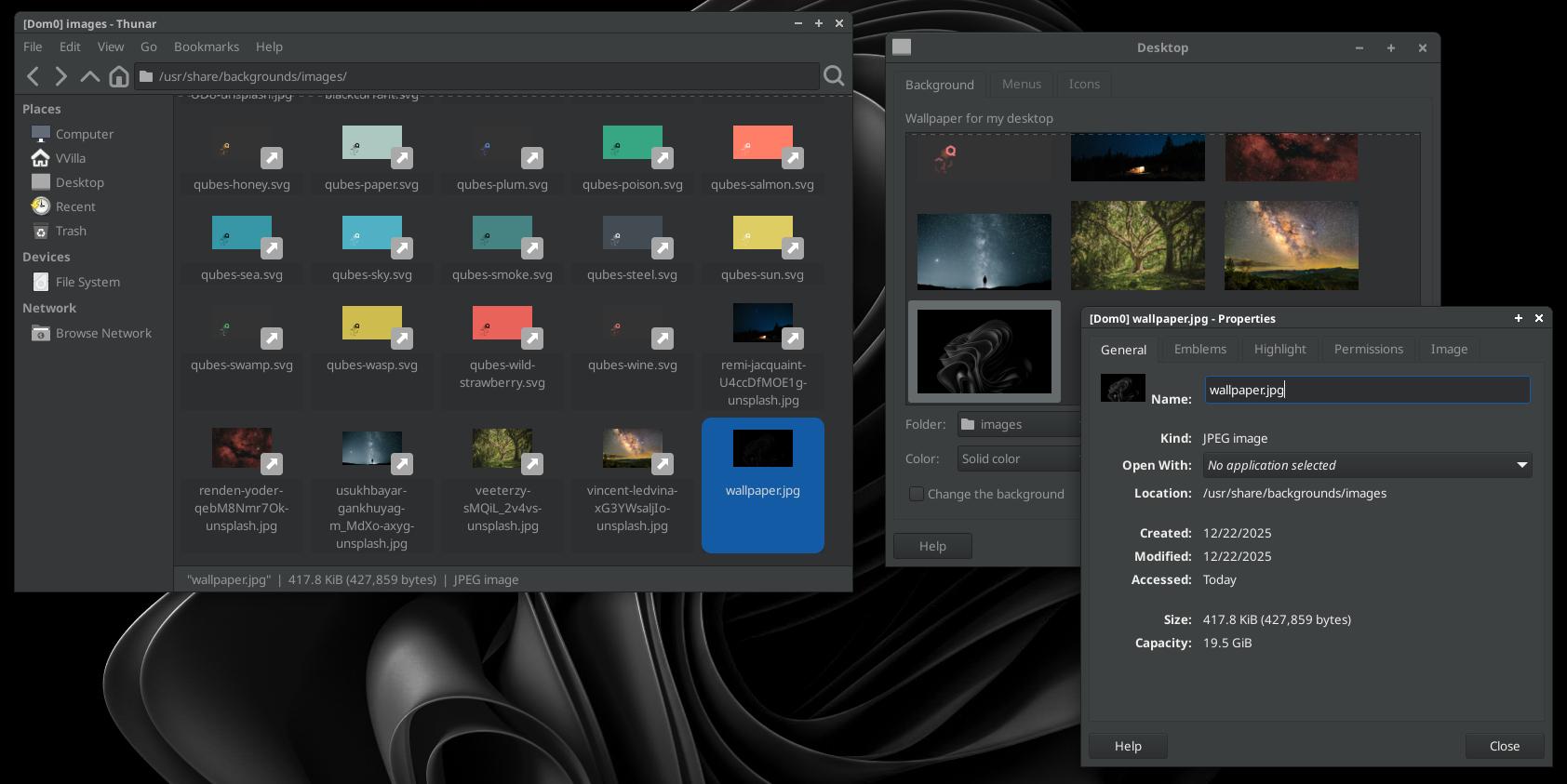
1. Overview
Qubes OS 4.3 uses:
- LightDM for the initial login screen after boot.
- xfce‑screensaver for the lock screen when you lock an active session.
This guide shows how to:
- Set a custom user avatar for LightDM (login screen).
- Enable a dark theme for the LightDM greeter.
- Set a custom user avatar for the xfce‑screensaver lock screen (via your user icon).
- Optionally configure LightDM via a GUI tool instead of editing the config file by hand.
- Import an avatar image and wallpapers into dom0 via dom0 screenshots from AppVMs/DispVMs.
All changes happen in dom0.
2. Prerequisites & Warnings
- All commands below are run in dom0 unless otherwise noted.
- Be careful editing anything under
/etcin dom0; mistakes can affect your ability to log in. - Only copy files into dom0 that you fully trust. Dom0 is security‑critical.
- Installing additional packages in dom0 (like
lightdm-gtk-greeter-settings) increases dom0’s complexity and attack surface. If you prefer minimal dom0 changes, stick to the manual config‑file method.
3. Change the Login Screen User Avatar (LightDM)
LightDM’s GTK greeter supports a default user image. You can point it to any PNG/JPEG image available in dom0.
3.1 Choose or add an image in dom0
The avatar image ultimately needs to exist as a file in dom0, but there are two main ways to get it there:
- Option A (no direct file copy from VM): Show the image in an AppVM/DispVM and use a dom0 screenshot to create the avatar file in dom0.
- Option B (direct file copy): Copy the image file from an AppVM/DispVM into dom0 using
qvm-run --pass-io.
Option A: Use a dom0 screenshot to avoid copying files into dom0
- In an AppVM/DispVM, open the image you want (e.g. in an image viewer or browser).
- Maximize/fullscreen the AppVM window so the image fills the desktop area as much as possible.
- In dom0, open the screenshot tool and choose to capture the region or entire screen.
- Save the screenshot in dom0, e.g.:
- Suggested path:
~/Pictures/avatar.jpg
- Place it in a standard location:
# In dom0
sudo mkdir -p /usr/share/pixmaps
sudo cp ~/Pictures/avatar.jpg /usr/share/pixmaps/my-user.jpg
sudo chmod 644 /usr/share/pixmaps/my-user.jpg
This way, you never copy the original file from the VM into dom0; you only create a new image in dom0 via a fullscreen screenshot of what is displayed on the screen.
Option B: Copy an image file directly into dom0
If you’re okay copying the file itself into dom0, you can use qvm-run --pass-io (see next subsection).
3.2 Copy or “import” a profile picture from an AppVM/DispVM
If your profile picture is in an AppVM/DispVM (e.g. disp1234), and you do want to copy the actual file into dom0, use:
Warning: Only do this for images you fully trust.
- Ensure the picture exists in the VM, e.g.
~/Downloads/ProfilePicture.jpg. - In dom0:
qvm-run --pass-io disp1234 'cat /home/user/Downloads/ProfilePicture.jpg' \
  > /usr/share/pixmaps/ProfilePicture.jpg

sudo chmod 644 /usr/share/pixmaps/ProfilePicture.jpg
You can now use /usr/share/pixmaps/ProfilePicture.jpg as your avatar path in the LightDM config.
3.3 Point LightDM to your custom image
- Edit the LightDM GTK greeter configuration in dom0:
sudo nano /etc/lightdm/lightdm-gtk-greeter.conf
- Find the
[greeter]section (create it if it doesn’t exist), then add or edit:
[greeter]
default-user-image=/usr/share/pixmaps/ProfilePicture.jpg
or, if you used the earlier example:
[greeter]
default-user-image=/usr/share/pixmaps/my-user.png
Make sure there is only one default-user-image= line in [greeter].
3. Save and exit (Ctrl+O, Enter, Ctrl+X in nano).
4. Reboot so LightDM reloads the config:
sudo reboot
After reboot, the login screen should show the new avatar.
3.4 (Optional) Use a GUI: lightdm-gtk-greeter-settings
Instead of manually editing /etc/lightdm/lightdm-gtk-greeter.conf, you can install a graphical configuration tool:
- Pros: Easier, user‑friendly way to adjust the theme, user image, and other greeter options.
- Cons: Requires installing additional packages in dom0, which some users prefer to avoid for security/minimalism reasons.
- In dom0, install the tool (for Fedora‑based dom0):
sudo dnf install lightdm-gtk-greeter-settings
- Launch it from the dom0 application menu (e.g. “LightDM GTK+ Greeter settings”) or run:
lightdm-gtk-greeter-settings
- Use the GUI to:
- Select your user image (point it at the file you prepared in
/usr/share/pixmaps/or another location). - Adjust theme, icons, and other greeter appearance settings.
The GUI will update /etc/lightdm/lightdm-gtk-greeter.conf for you. You still need to reboot for LightDM to apply the changes.
If you don’t want extra packages in dom0, skip this and stick to the manual editing described in 3.3 and 4.1.
4. Set a Dark Theme for the Login Screen (LightDM)
You can tell the LightDM GTK greeter to use a dark GTK theme, and you can control its background via your desktop wallpaper.
You can do this either:
- Manually (edit the config file), or
- Via the
lightdm-gtk-greeter-settingsGUI (if installed, see 3.4).
4.1 Edit the LightDM GTK greeter config (theme only)
- In dom0:
sudo nano /etc/lightdm/lightdm-gtk-greeter.conf
- Under
[greeter], add or update:
[greeter]
theme-name=Adwaita-dark
Notes:
theme-nameis the GTK theme. Common dark options in Xfce/Qubes include Adwaita-dark, Greybird-dark, or other installed themes.- If there is already a
theme-name=line:- Replace it, or
- Comment it out with
#and add your own line.
- Save and exit, then reboot:
sudo reboot
If you installed lightdm-gtk-greeter-settings, you can instead open it and set the theme from the GUI; it will edit this file for you.
4.2 Change your desktop wallpaper (reflected on login)
The LightDM background usually follows your desktop background configuration.
Basic method: Use existing wallpapers
- In dom0, open:
- Start (Qube Menu) → Settings (gear/cog icon) → System Settings → Desktop
- Choose one of the existing wallpapers.
- Apply changes and log out or reboot.
Your selected desktop wallpaper should now appear as the login screen background.
Custom wallpaper: fullscreen screenshot from a Qube
If you want a custom wallpaper that also appears in the standard wallpaper list:
- In an AppVM/DispVM, open the image or content you want as a wallpaper and fullscreen the window so it covers the entire desktop.
- In dom0, use the screenshot tool to capture the entire desktop (full screen).
- Save the screenshot temporarily, e.g.:
# Screenshot saved via GUI to e.g.
~/Pictures/custom-wallpaper.png
- Move or copy it into the Qubes wallpapers directory so it shows up alongside the default Qubes wallpapers:
sudo mkdir -p /usr/share/backgrounds/images/
sudo cp ~/Pictures/custom-wallpaper.png /usr/share/backgrounds/images/
sudo chmod 644 /usr/share/backgrounds/images/custom-wallpaper.png
- Now open:
- Start (Qube Menu) → Settings → System Settings → Desktop
- Your new image should appear with the other Qubes OS wallpapers. Select it and apply.
After you log out or reboot, LightDM should use this custom wallpaper as the login screen background.
5. Change the Lock Screen Avatar (xfce‑screensaver)
On Qubes OS 4.3, the lock screen is handled by xfce‑screensaver. It does not have its own separate avatar setting; instead, it shows your user icon, typically taken from ~/.face (and/or AccountsService).
So the easiest way to change the lock screen avatar is to set ~/.face for your dom0 user. You can obtain this image either by:
- Using the fullscreen screenshot method, or
- Copying a file directly from a VM.
5.1 Copy a trusted picture into dom0
Example using qvm-run --pass-io (direct copy):
# In dom0
qvm-run --pass-io disp1234 'cat /home/user/Downloads/ProfilePicture.jpg' \
  > ~/ProfilePicture.jpg

chmod 644 ~/ProfilePicture.jpg
Or, if you prefer not to copy the file, use the dom0 screenshot approach:
- Open the desired image in an AppVM/DispVM.
- Fullscreen the window showing the image.
- In dom0, take a screenshot and save it, e.g.
~/Pictures/avatar-lock.png.
5.2 Set it as your user icon via ~/.face
Once the image exists in dom0 (via screenshot or file copy), set it as your user icon:
cp ~/ProfilePicture.jpg ~/.face
# or e.g.
cp ~/Pictures/avatar-lock.png ~/.face

chmod 644 ~/.face
~/.face is the standard per‑user icon path that xfce‑screensaver (and other desktop components) will read.
5.3 Restart your session and test
- Log out of your dom0 desktop session, then log back in.
- Lock the screen (via the Xfce menu or the lock shortcut).
- The xfce‑screensaver lock screen should now show your new avatar next to your username.
No extra xfce‑screensaver configuration is needed; it simply uses your user icon.
6. Troubleshooting
6.1 No avatar on the login screen (LightDM)
- Confirm the image file exists in dom0:
ls -l /usr/share/pixmaps/ProfilePicture.jpg
# or
ls -l /usr/share/pixmaps/my-user.png
- Ensure permissions are readable:
sudo chmod 644 /usr/share/pixmaps/ProfilePicture.jpg
- Check that
default-user-image=is under[greeter]and not misspelled in
/etc/lightdm/lightdm-gtk-greeter.conf. - If you used the
lightdm-gtk-greeter-settingsGUI, reopen it and confirm the selected image path is correct and accessible.
6.2 Login screen is not using the dark theme
- Verify the theme name is correct and installed (e.g.
Adwaita-dark). - Ensure there is only one
theme-name=line in the[greeter]section. - Fully reboot; don’t rely only on logging out.
- If using the GUI tool, reopen it and verify it shows the dark theme as selected.
6.3 Background didn’t change on the login screen
- Verify that your desktop wallpaper has changed via:
Start (Qube Menu) → Settings → System Settings → Desktop. - If using a custom wallpaper:
- Confirm it exists in
/usr/share/backgrounds/images/and has readable permissions (chmod 644).
- Confirm it exists in
- Log out and back in, or reboot, so the display manager picks up the change.
6.4 Lock screen avatar didn’t change (xfce‑screensaver)
- Confirm
~/.faceexists and is readable:
ls -l ~/.face
If needed:
chmod 644 ~/.face
- Make sure you:
- Logged out of your dom0 session and back in, or
- Restarted the Xfce session (full logout is more reliable).
- If you used a screenshot, confirm it actually captured the correct image and is not blank or very low resolution.