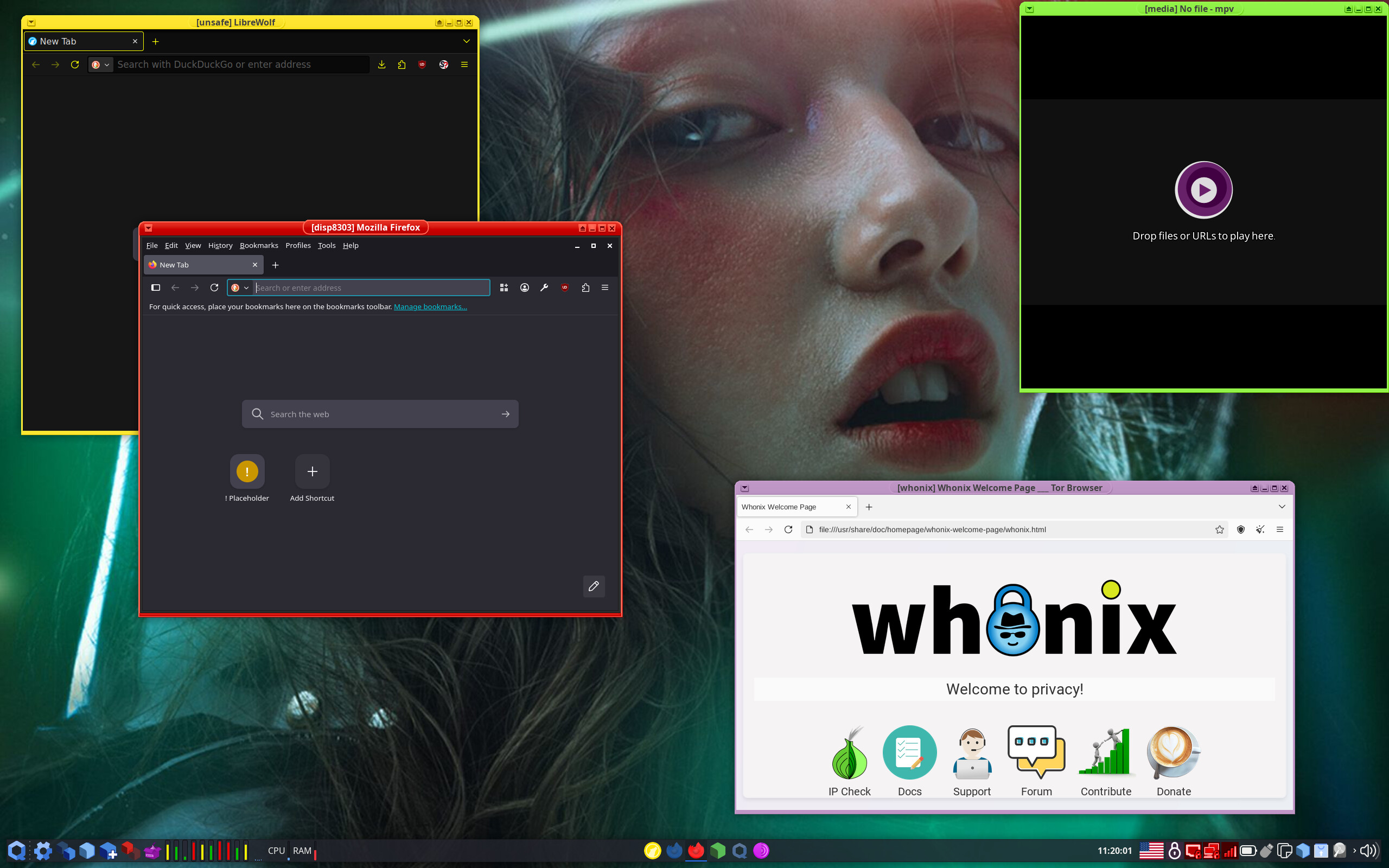
So, I’ve replaced the default icons with these ones in the gateway template. Is there anything else I need to do? it doesn’t change icon in the tray.
P.S. Wow, I installed xfce4‑panel and then the settings worked! Thank you!
So, I’ve replaced the default icons with these ones in the gateway template. Is there anything else I need to do? it doesn’t change icon in the tray.
P.S. Wow, I installed xfce4‑panel and then the settings worked! Thank you!
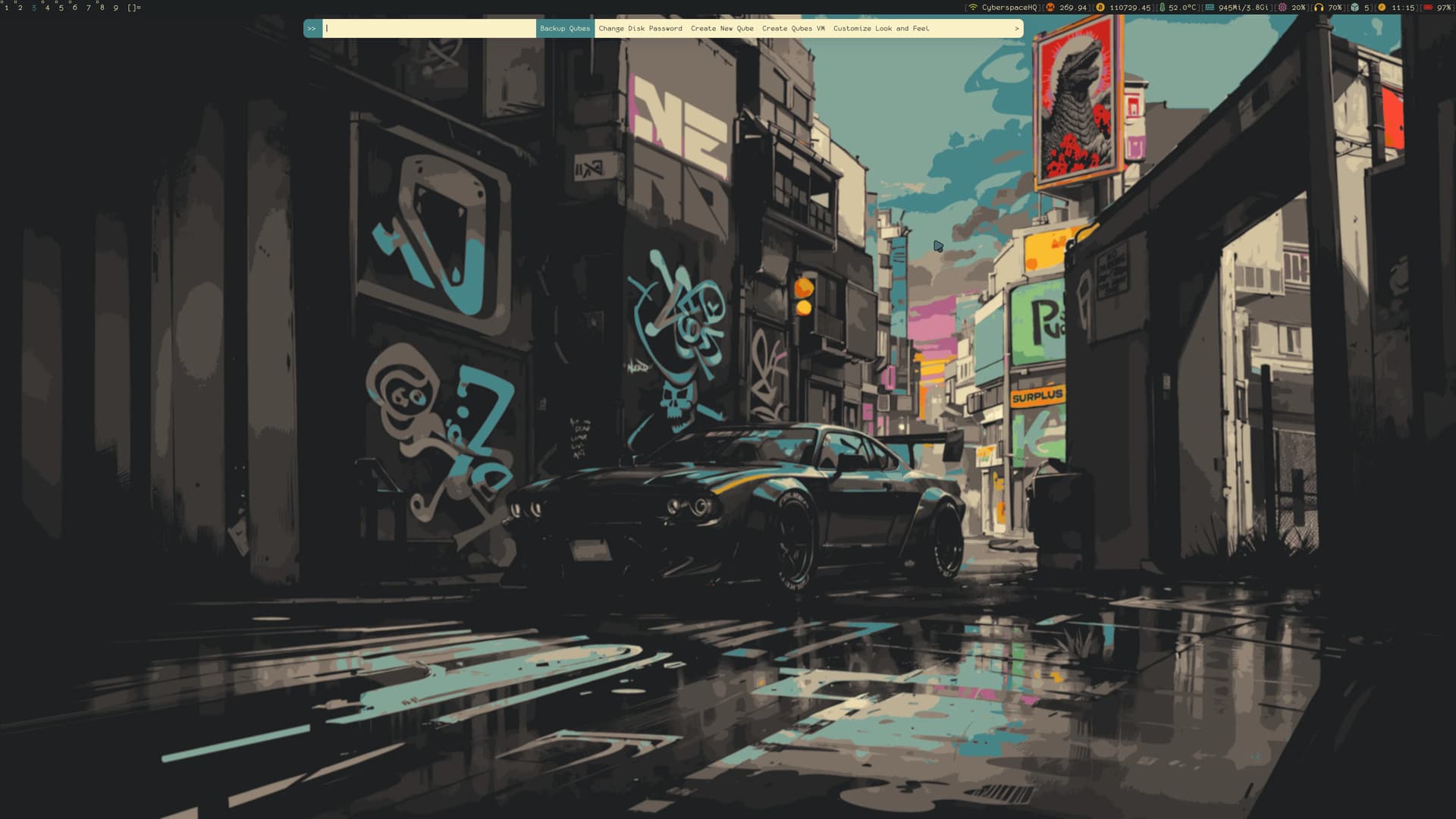
Really nice! Is this light/blue bar a widget?
Wow. Write a guide on how to make such a panel 
It’s j4-dmenu-desktop with patched dmenu
It’s a dwmblocks for dwm;so you have to be using dwm
Nice car. Is it yours?
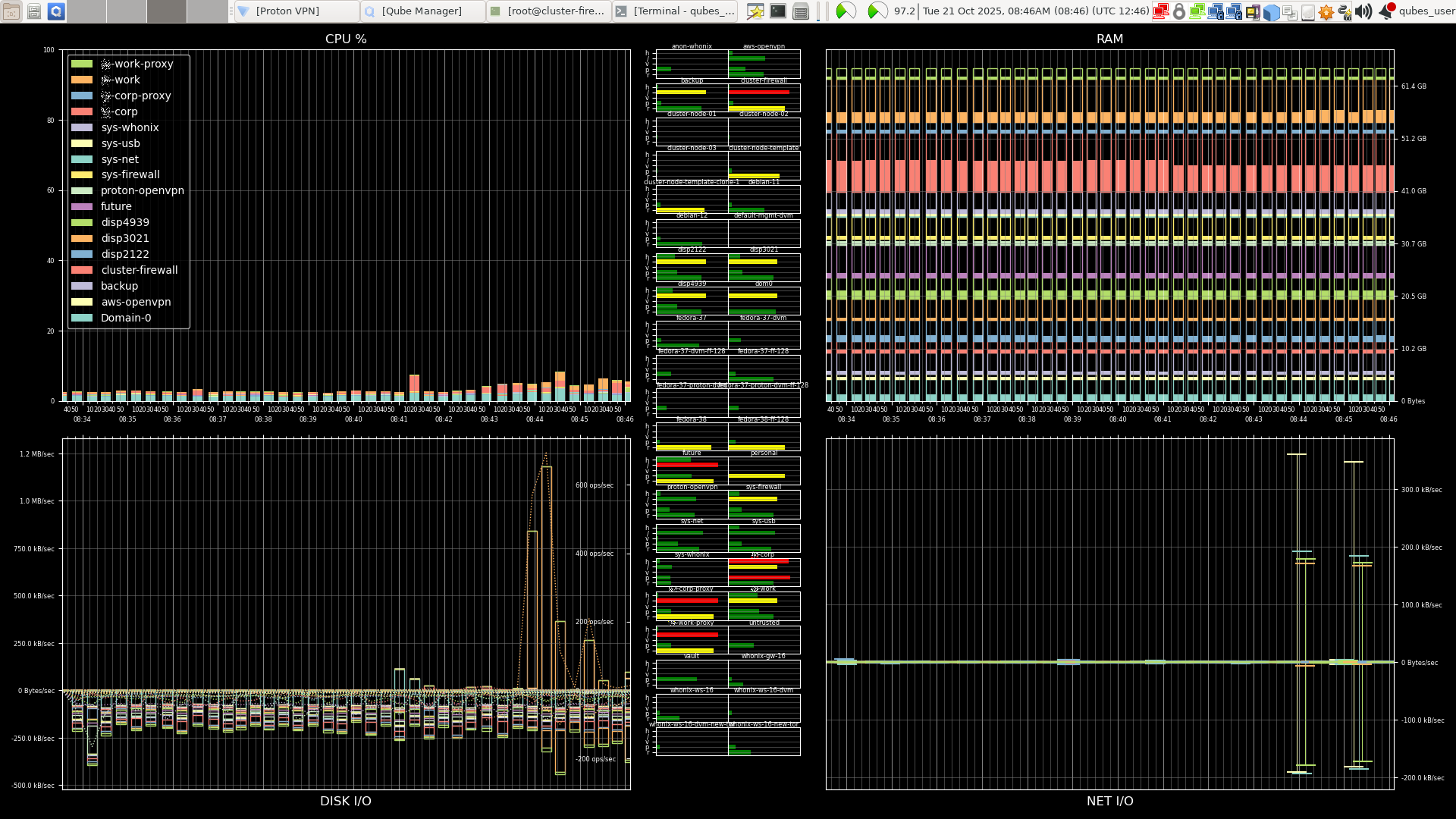
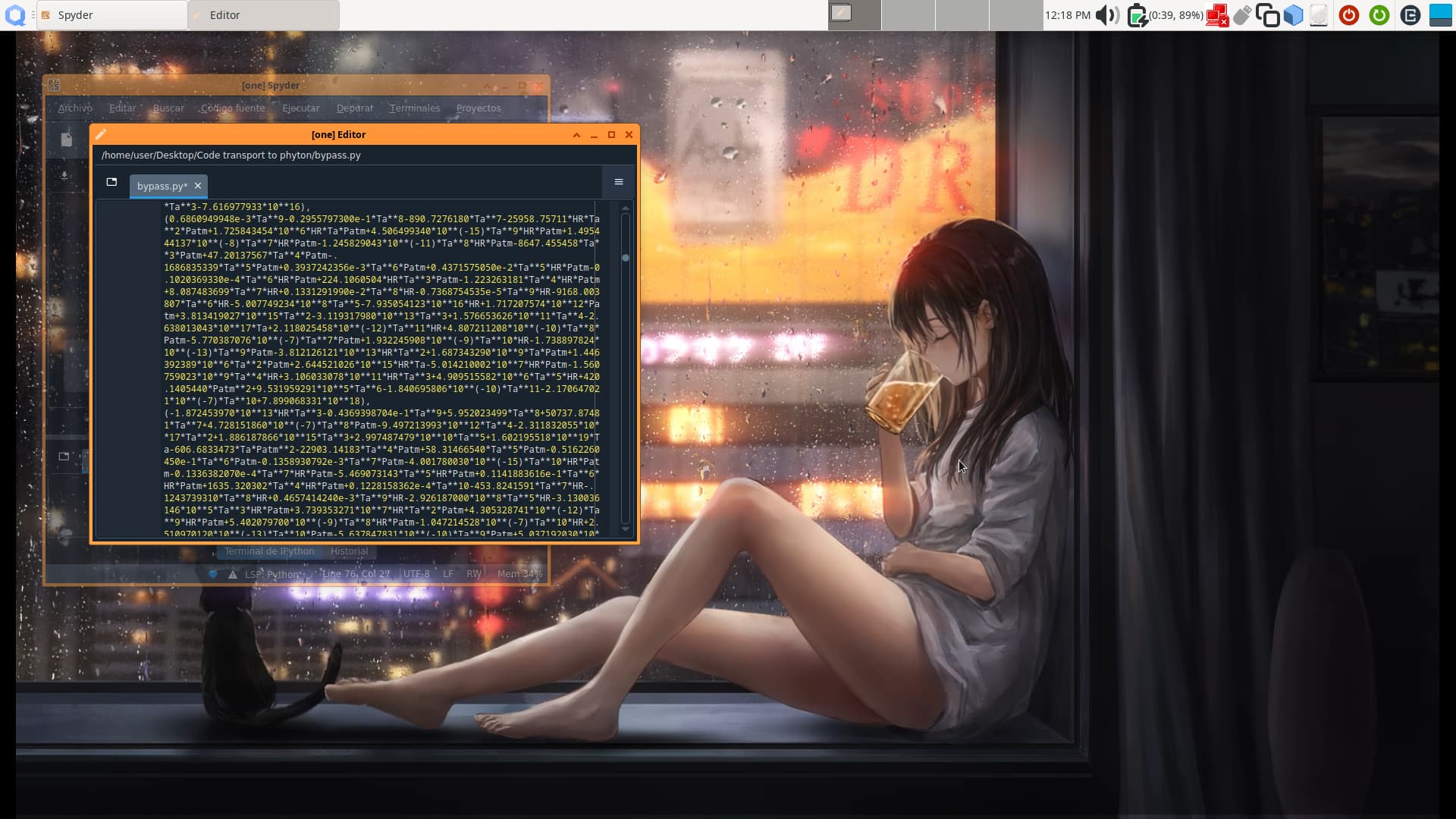
I have a python script running in dom0 that runs various qubes and xen utilities in dom0, as well as using qvm-run into the running qubes to issue OS commands to generate an image, which it then sets as the desktop background. It runs regularly (every 10 seconds or so) to regenerate the image.
The whole idea is pretty nice and I really like that RAM visualization. That way we can not only see the overall RAM consumption but also each individual qube’s.
Yes, when Qubes does its memory balancing, you can see the colored outline bar for each qube shrink as Qubes borrows unused RAM, leaving less black space inside each qube’s bar. I have it send desktop notifications when the black space is less than 20% of the total for any qube. I also have it write all its measurements into gzipped json files in my home directory in case I want to examine it historically.
It’s a very nice desktop 
Perhaps you could share your script?
Thank you very much! I will post it as soon as I make sure it works with Qubes 4.2, since I’m in the middle of upgrading right now.
Hi guys,
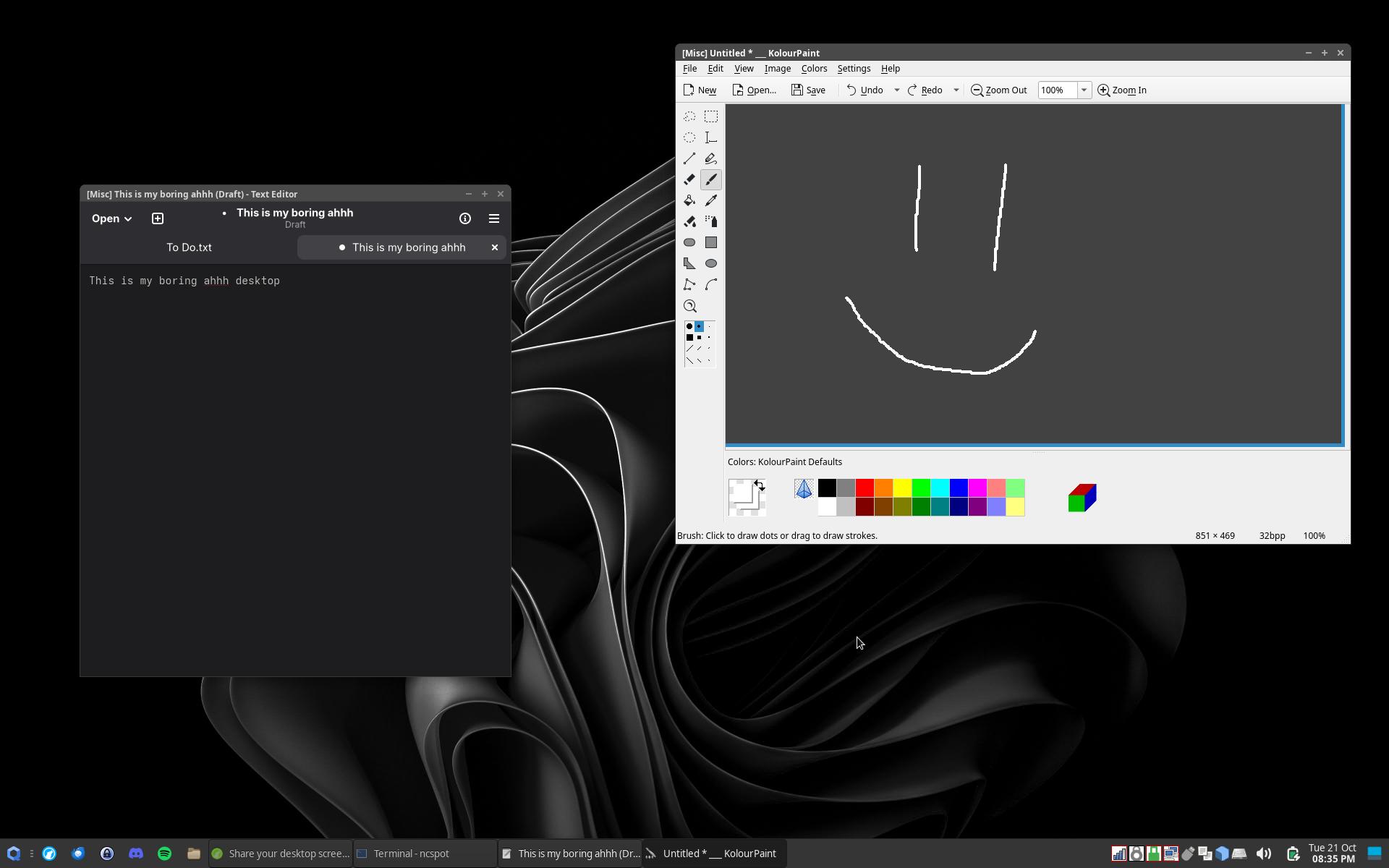
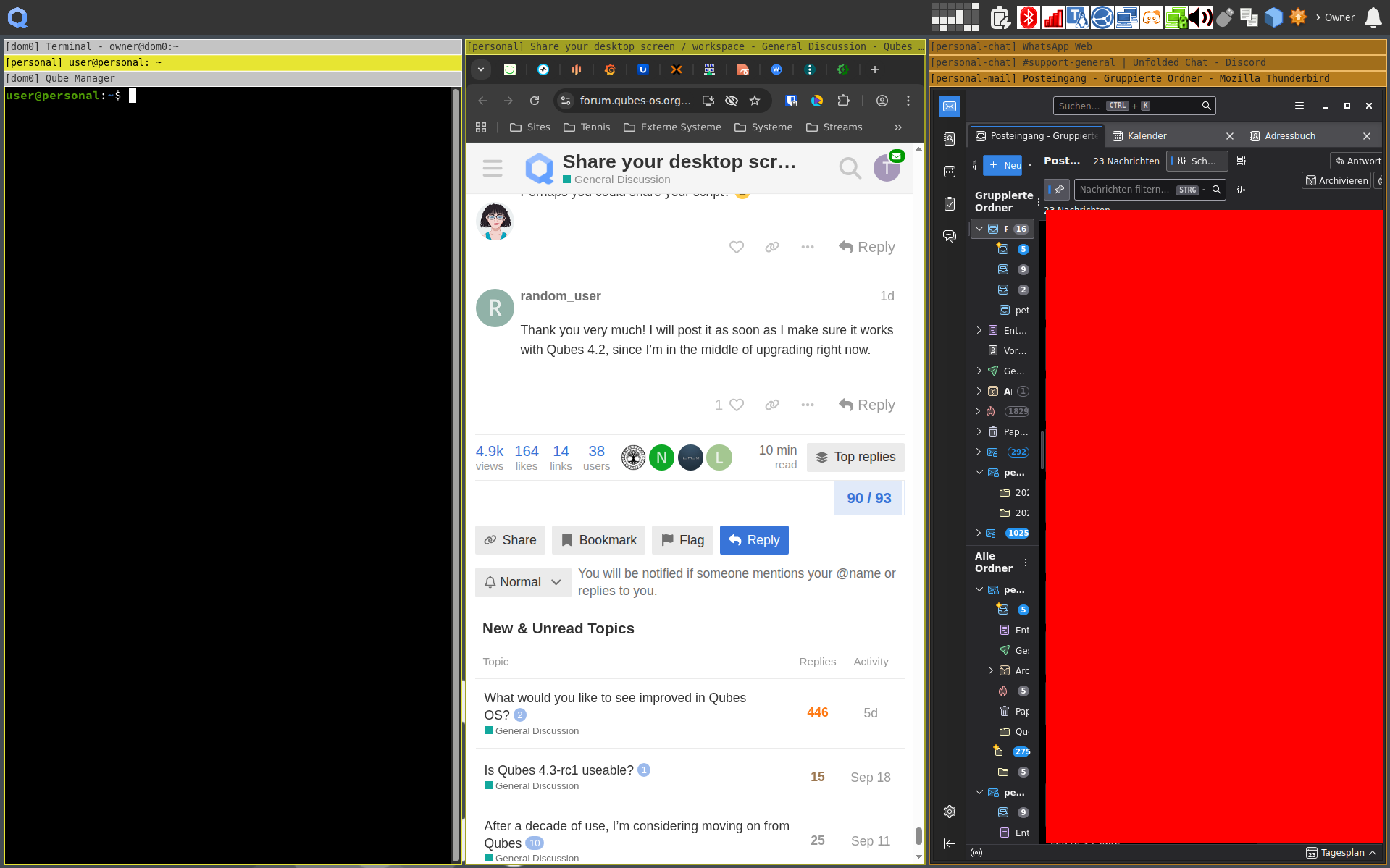
I have recently switched to a mix of XFCE4 and i3 window manager. I am using my machine for personal stuff (workspace 1) and work stuff (workspace 2). This is how my window layout (for personal use) currently looks like:
I am really impressed about the way i3 allows to work with apps. The fact that all of them are “visible” is something that I was missing without knowing it. I have divided my workspace into 3 colums, each contains the apps for a particular use case in a stacked manner. When I need to work with an app and require more space, I have created a custom “fullscreen” mode which allows to switch between apps without leaving the fullscreen.
I am a big VI fan so all my important shortcuts are configured around hjkl. Knowing the layout it is easy to switch to a particular app even in fullscreen mode. Really cool
Most likely not the best way to utilize i3, but for me this is a great improvement. The only thing I am unhappy about is that not every app I am using allows working with keyboard. I’d love to not require to touch the mousepad too often
Interesting, good work, it reminded me of Rainmeter on Windows for monitoring systems in a visually appealing way.