QubesOS for beginners

This guide will not explain how Qubes OS (QOS), computers or attacks work. This guide will not explain how to make Qubes OS more secure, more convient or perform faster. This guide only explains Qubes OS in the most basic sense at the cost of accuracy and in depth learning. This is intened for new users either curious or very lost in QOS who are only looking for a very basic foothold to use their system, learning how to better configure it later. This guide assumes a traditional laptop that “just works.” See the Hardware Compatibility List (HCL) to check for your device or components. Installing Qubes is mostly the same as installing most other operating systems, but some popular tools like Ventoy are incompatible. Find a guide for that elsewhere, it’s just download > verify > burn to external drive > reboot from external drive.

The core concept a Qubes user needs to understand is that “qubes” are separate compartments. The same way different computers have different hard drives and different data stored on those hard drives, different “qubes” are isolated from one another. The main benefit Virtual Machines (VMs) offer over other configurations is the ability to “host” multiple “guest” Operating Systems (OSes) that can be used simultaneously while segregating files and processes from dangerous or otherwise untrusted programs and accessories. As far as the current casual end-user is concerned, “qubes” are a QOS specific name for virtual machines. QOS’ specific benefit over other ways of hosting VMs in this regard is the superior integration of multiple systems. Using the default OSes provided in Qubes, VMs only share their windows instead of the entire desktop, making less clutter and using fewer resources compared to traditional VM systems. In addition, Qubes has a built-in tool for copying/moving/sharing files to other virtual machines, removing inconveniences from the traditional data isolation experience. VMs, however, come with overhead (need stronger hardware) and tax (runs slower in use). While Qubes is somewhat better than other systems in this regard, VMs are still slow and do not have access to your graphics card in the default configuration.

Secondarily, it helps to understand that computers generally encounter “problems” as a result of what is on or in the computer. This ranges from vulnerabilities in your graphics card’s firmware to incompatibilities a program has with a driver. If there is no code, there is nothing to attack, break or get stuck. QOS uses a stripped down host system compared to a normal desktop using virtual machines, making it harder to attack Qubes’ host system compared to Windows running VMWare or alternatives. If a guest is hacked, only that guest is in danger. If the host is hacked, everything is in danger (“game over”). VMs with fewer programs are less likely to have malware succeed, and a host system with no “real” activity is less likely to have malware at all.

Qubes does nothing to make a VM or OS safer than it is by default. Qubes is not magic. Qubes allows the user to separate their computer into multiple discrete boxes to avoid contaminating high value targets like banking information and passwords with malware injected from another VM’s browser. Qubes will not protect your emails from themselves or your passwords from user error. Qubes is not perfect, and may still be defeated at some point in the future. Qubes is not anti-forensic. Data is stored on the drive and may expose your activities if harvested.

Qubes currently only works on x86_64 architecture CPUs. For bare minimum internet access, 5500mb (5.5gb) of RAM should be available. Offline use can be as low as 4500mb (4.5gb). The official Qubes documentation states 6gb of RAM as the minimum. Each VM is probably 300mb idle, using the default OSes provided, plus whatever your programs are actually using. Advanced configuration can reduce this RAM requirement. At least 32gb of storage should be present on the target install drive. Because VMs do not have access to the GPU, all that matters is one is present to create an output for your display. This GPU will be taken by dom0 and cannot be used for another VM without crashing QOS. The integrated GPU your CPU comes with is fine. I use a device with 2x 1.5GHz cores, 8gb ram and 256gb of storage. It’s slow, but it views webpages fine and runs some games at a lower resolution. The most graphically intensive game I play is City of Heroes (CoH), which is incompatible with some modern graphics cards. Running CoH on CPU at 5 frames per second is normal in my case. Rimworld runs 1/4 resolution at 3/4 speed. High Definition videos frequently stutter, so I only use Standard Definition. If this is a dealbreaker to you, consider getting a secondary device and using one for entertainment while the other is a Qubes device for browsing, mail, shopping.

Qubes OS has five types of virtual machines.

The AdminVM (Dom0) does managerial tasks involving updates, creating VMs, destroying VMs and so on. This VM is not intended to run your programs, use a VM below.

TemplateVMs (TempVMs/templates) share system data with AppVMs based on the TempVM. This is where you install and update programs.

ApplicationVMs (AppVMs) inherit their system data from TempVMs and share their system data to DispVMs based on the AppVM. This is where you run programs. AppVMs will forget their system data, so installed programs will disappear.

StandaloneVMs (standalones) do not inherit or share data. They are the simplest type of VM and are comparable to what a normal system uses. If you are not sure about managing TempVMs and AppVMs, consider leaving the default templates alone and just using them to clone standalones from.

DisposableVMs (DispVMs/disposables) are self-destructing AppVMs that will lose all data (both user and system data) after closing the window the DispVM was initially opened for. This is more ideal for browsing if you do not need to keep passwords or other data in the same VM.

By default, Qubes comes with three operating systems. Debian is (very) slightly easier to use, Fedora is more frequently updated (and thus more secure) and Whonix is designed to connect to the Tor Anonymity Network (the dark web) making it better suited for anonymity. Feel free to choose, keeping your laws in mind when considering Whonix. For those in the United States (US), Tor is just as legal as normal web browsing, which means you’re only in trouble if you’re connecting to servers (websites and such) you shouldn’t be.

Once you’re booted into the system, you will be looking at Dom0, the AdminVM. Your qubes will be available through the giant Q on your taskbar (right click the task bar and choose “panel > panel preferences” to edit if desired). Updates are in the “Qubes Tools” tabs in the cog category of the Q. “System Settings” will allow you to change most cosmetic features of your windows, background, mouse and so on. Connecting to the internet should be as usual provided the VM “sys-net” is running. USB peripherals are in “sys-usb” and can be managed using the USB widget. By default, plugging in a USB will keep it in “sys-usb” as a kind of “usb jail,” preventing it from being seen by other VMs or tampering with them. Passing a device to a VM endangers the VM to any malware in the USB and endagers the USB to any malware in the VM. Right clicking a file in your file manager allows you to move it to another VM. Moving a file from VM1 to VM2 exposes VM2 to any malware in this file. “Qubes Manager” is the main screen for editing your VMs and connections (such as connecting a browsing VM to “sys-firewall” which bridges your VM to “sys-net” or disconnecting it to keep the VM and its programs offline while the rest of the machine is online).

Create as many VMs as you have workflows, so your files and VMs are only exposed to what you already intend them to be exposed to. Using the same gloves (VM) to clean the toilet (open risky emails) and cook (file important paperwork) means you’re eating filth (email malware spreads to paperwork) and seasoning your plumbing (paperwork could spread malware to emails). Handling sewage with different gloves (copying a dangerous file to another VM) exposes both gloves (VMs) to a virus (a virus). Merge, close, open and split VMs as needs arise and pass. Expect to have to reset a few times before you get it right.

From here, your Debian VM is mostly like a normal Debian VM and your Fedora VM is mostly like a normal Fedora VM. Help installing programs is a Debian/Fedora problem, not a Qubes problem. Try fix your problems alone. Try to search already answered problems. Try to be specific and descriptive with your problems when asking for help. If you want help with a use case like choosing an art program, consider asking forum for your use case or your OS’ forums instead. If you want help configuring for privacy/security/anonymity/antiforensics, research what a threat model is first and provide that in your question. “How much security do I need?” is wrong. “What kind of security do I need?” is closer, but we don’t know because we don’t know what you are protecting or what you are protecting it from. “What kind of measures should I take to avoid service-side spyware, like Google seeing what I watch on Youtube?” is much better and something Qubes users can help with.

No one person is Qubes. I am not affiliated with Qubes. I am not a Qubes expert. I am not a security expert. I like virtual machines and minimal hardware. I mostly use Qubes to play video games, edit memes, write music, draw poorly and read textbooks.
QMK0x427F11FD0FAA4B080123F01CDDFA1A3E36879494
If your computer beeps you might need to blacklist pcspkr or snd_pcsp.
4 Likes

I have no idea how to un-code this post

I did it :D

Unrelated to this, user Solene writes many easy to comprehend guides beginners could also benefit from.

I found your beginners guide quite useful. Perhaps you could include it as a separate chapter in the official documentation.

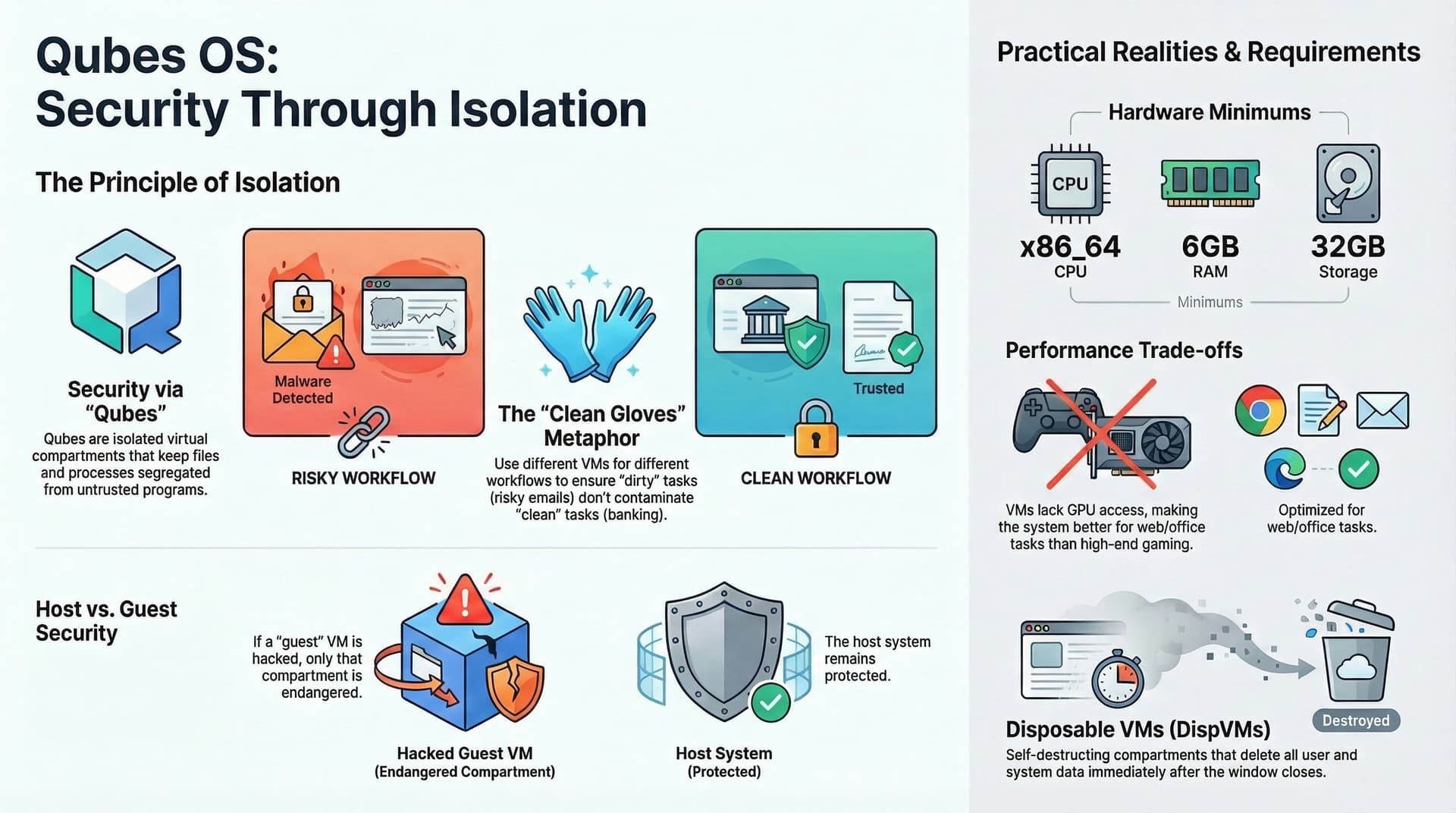
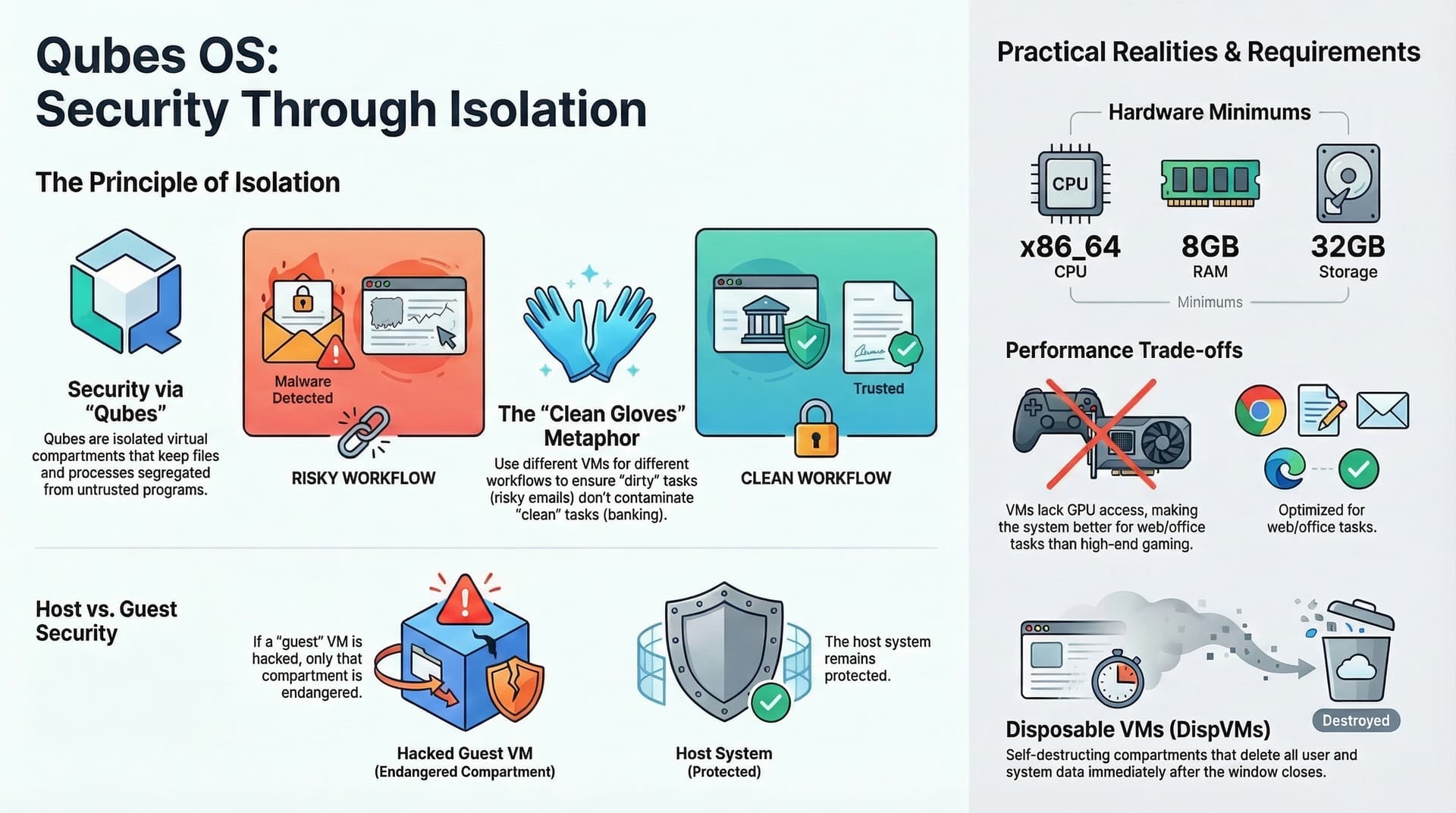
In order to help real beginners to understand this rather complex environment, I have created some pictures from your text, using the AI tool NotebookLM. Perhaps you can use them to illustrate your text.

Qubes_for_Beginners_1.tar.gz (2.5 MB)

Qubes_for_Beginners_2.tar.gz (2.2 MB)

4 Likes

Please increase the minimum RAM: System requirements — Qubes OS Documentation

I would go even higher as the doc recommends.

3 Likes

Corrected. While higher is recommended, I put the bare minimum. Same goes for storage and graphics. I know at least one user here proposed 32gb of RAM, and I believe unman has supported 16gb as working in the past, but I wanted to let new users with weaker(/older) devices or blocked by the RAM shortage know that this isn’t technically necessary. The 4gb (I have no idea why I thought I remembered this was the number) overhead taken by dom0 is a real drag, leaving a 6gb stick with only 2gb left to work with, but I don’t believe an experimenting user or one who just needs to send emails should be discouraged by recommendations that assume the user wants several qubes active at once or higher draw applications when casual or frugal usage is viable on 8gb, considering I can host an MMO. I admit however that someone less familiar with computers might not grasp how little this is nowadays and possibly encounter a problem.

1 Like

Just clarify my previous response goes to @GWeck image QubesOS for beginners - #3 by GWeck

You - your AI - listed 6GB as minimum requirement.

1 Like

I have now changed the RAM to 8 GB. While 6 GB is stated in the documentation as the absolute minimum, I would not recommend installing Qubes, because it’s a pain in the ass in such a meager system. Especially not for beginners, who would be deterred from using such a slow system. Even at today’s exaggerated prices, you could get 8 GB for around 50 € in Europe, so that should not be the world.

Here are the changed pictures:

Qubes_for_Beginners_03.jpg.gz (357 KB)

This text, without headings and bullets, is very hard to read (at least to me). So I tried to format it a bit.

QubesOS for beginners

This guide will not explain how Qubes OS (QOS), computers or attacks work. This guide will not explain how to make Qubes OS more secure, more convenient or perform faster. This guide only explains Qubes OS in the most basic sense at the cost of accuracy and in-depth learning. This is intended for new users either curious or very lost in QOS who are only looking for a very basic foothold to use their system, learning how to better configure it later.

This guide assumes a traditional laptop that “just works.” See the Hardware Compatibility List (HCL) to check for your device or components.

Installing Qubes is mostly the same as installing most other operating systems, but some popular tools like Ventoy are incompatible. Find a guide for that elsewhere, it’s just:

  1. Download
  2. Verify
  3. Burn to external drive
  4. Reboot from external drive

Core concept

The core concept a Qubes user needs to understand is that “qubes” are separate compartments. The same way different computers have different hard drives and different data stored on those hard drives, different “qubes” are isolated from one another.

The main benefit Virtual Machines (VMs) offer over other configurations is the ability to “host” multiple “guest” Operating Systems (OSes) that can be used simultaneously while segregating files and processes from dangerous or otherwise untrusted programs and accessories. As far as the current casual end-user is concerned, “qubes” are a QOS-specific name for virtual machines.

QOS’ specific benefit over other ways of hosting VMs in this regard is the superior integration of multiple systems. Using the default OSes provided in Qubes, VMs only share their windows instead of the entire desktop, making less clutter and using fewer resources compared to traditional VM systems. In addition, Qubes has a built-in tool for copying/moving/sharing files to other virtual machines, removing inconveniences from the traditional data isolation experience.

VMs, however, come with:

  • overhead (need stronger hardware)
  • tax (runs slower in use)

While Qubes is somewhat better than other systems in this regard, VMs are still slow and do not have access to your graphics card in the default configuration.

Understanding problems and risk

Secondarily, it helps to understand that computers generally encounter “problems” as a result of what is on or in the computer. This ranges from:

  • vulnerabilities in your graphics card’s firmware
  • incompatibilities a program has with a driver

If there is no code, there is nothing to attack, break or get stuck.

QOS uses a stripped down host system compared to a normal desktop using virtual machines, making it harder to attack Qubes’ host system compared to Windows running VMWare or alternatives.

  • If a guest is hacked → only that guest is in danger
  • If the host is hacked → everything is in danger (“game over”)

VMs with fewer programs are less likely to have malware succeed, and a host system with no “real” activity is less likely to have malware at all.

What Qubes does not do

Qubes does nothing to make a VM or OS safer than it is by default. Qubes is not magic. Qubes allows the user to separate their computer into multiple discrete boxes to avoid contaminating high value targets like banking information and passwords with malware injected from another VM’s browser.

Qubes will not:

  • protect your emails from themselves
  • protect your passwords from user error

Qubes is not perfect, and may still be defeated at some point in the future. Qubes is not anti-forensic. Data is stored on the drive and may expose your activities if harvested.

Hardware requirements

Qubes currently only works on x86_64 architecture CPUs.

For bare minimum internet access:

  • 5500mb (5.5gb) of RAM should be available

Offline use:

  • as low as 4500mb (4.5gb)

The official Qubes documentation states:

  • 6gb of RAM as the minimum

Each VM is probably 300mb idle using the default OSes provided, plus whatever your programs are actually using. Advanced configuration can reduce this RAM requirement.

At least:

  • 32gb of storage should be present

Because VMs do not have access to the GPU, all that matters is one is present to create an output for your display. This GPU will be taken by dom0 and cannot be used for another VM without crashing QOS. The integrated GPU your CPU comes with is fine.

I use a device with:

  • 2x 1.5GHz cores
  • 8gb ram
  • 256gb of storage

It’s slow, but it views webpages fine and runs some games at a lower resolution.

The most graphically intensive game I play is City of Heroes (CoH), which is incompatible with some modern graphics cards. Running CoH on CPU at 5 frames per second is normal in my case. Rimworld runs 1/4 resolution at 3/4 speed. High Definition videos frequently stutter, so I only use Standard Definition.

If this is a dealbreaker to you, consider:

  • getting a secondary device
  • using one for entertainment
  • using Qubes device for browsing, mail, shopping

Types of virtual machines

Qubes OS has five types of virtual machines:

  1. The AdminVM (Dom0)

    • does managerial tasks involving updates, creating VMs, destroying VMs and so on
    • not intended to run your programs
  2. TemplateVMs (TempVMs/templates)

    • share system data with AppVMs based on the TempVM
    • this is where you install and update programs
  3. ApplicationVMs (AppVMs)

    • inherit their system data from TempVMs
    • share their system data to DispVMs
    • this is where you run programs
    • AppVMs will forget their system data, so installed programs will disappear
  4. StandaloneVMs (standalones)

    • do not inherit or share data
    • simplest type of VM
    • comparable to a normal system
  5. DisposableVMs (DispVMs/disposables)

    • self-destructing AppVMs
    • lose all data after closing

Default operating systems

By default, Qubes comes with three operating systems:

  • Debian

    • slightly easier to use
  • Fedora

    • more frequently updated (and thus more secure)
  • Whonix

    • designed to connect to the Tor Anonymity Network
    • better suited for anonymity

Feel free to choose, keeping your laws in mind when considering Whonix. For those in the United States (US), Tor is just as legal as normal web browsing, which means you’re only in trouble if you’re connecting to servers you shouldn’t be.

Basic usage

Once you’re booted into the system, you will be looking at Dom0, the AdminVM.

Your qubes will be available through the giant Q on your taskbar (right click the task bar and choose “panel > panel preferences” to edit if desired).

  • Updates are in the “Qubes Tools” tabs in the cog category of the Q
  • “System Settings” will allow you to change cosmetic features

Connecting to the internet should be as usual provided the VM “sys-net” is running.

USB peripherals are in “sys-usb” and can be managed using the USB widget.

By default:

  • plugging in a USB will keep it in “sys-usb”
  • acts as a “USB jail”

Risks:

  • passing a device to a VM endangers the VM
  • also endangers the USB

Right clicking a file in your file manager allows you to move it to another VM.

  • moving a file from VM1 to VM2 exposes VM2 to that file

“Qubes Manager” is the main screen for:

  • editing VMs
  • managing connections

Workflow advice

Create as many VMs as you have workflows, so your files and VMs are only exposed to what you already intend them to be exposed to.

Using the same gloves (VM):

  • to clean the toilet (open risky emails)
  • and cook (file important paperwork)

means:

  • you’re eating filth
  • and contaminating your workflow

Handling sewage with different gloves (copying a dangerous file to another VM) exposes both gloves (VMs) to a virus.

Merge, close, open and split VMs as needs arise and pass. Expect to have to reset a few times before you get it right.

Getting help

From here, your Debian VM is mostly like a normal Debian VM and your Fedora VM is mostly like a normal Fedora VM.

Help installing programs is:

  • a Debian/Fedora problem
  • not a Qubes problem

When asking for help:

  • try fixing problems alone
  • search existing answers
  • be specific and descriptive

Examples:

  • “How much security do I need?” → wrong
  • “What kind of security do I need?” → better
  • “What measures avoid service-side tracking?” → good

Final notes

No one person is Qubes. I am not affiliated with Qubes. I am not a Qubes expert. I am not a security expert. I like virtual machines and minimal hardware. I mostly use Qubes to play video games, edit memes, write music, draw poorly and read textbooks.

QMK0x427F11FD0FAA4B080123F01CDDFA1A3E36879494

If your computer beeps you might need to blacklist pcspkr snd_pcsp

3 Likes

I am a relatively new qubes user. I have 64gb of ram, but most of the time I peak at about 45gb being used. And, I am very liberal with the amount of memory I assign to qubes. The only place qubes falls down for me is video conference calls. Using an audio-vm helps the audio. But the video portion of the calls are problematic. Only solution I have figured out is to assign more processing power.