Hi.
This is a tutorial and the .css file of how I customized my XFCE4 panel so I can enjoy a more-beautiful-for-me desktop in Qubes OS.
I still have to upgrade some visuals but I think it’s a good starting point, and I think my research can be useful for others so they can customize their desktop.
And although this is more of a XFCE tutorial rather than a Qubes OS one, I’m bringing this here because it’s the only forum I use, and probably the only social network.
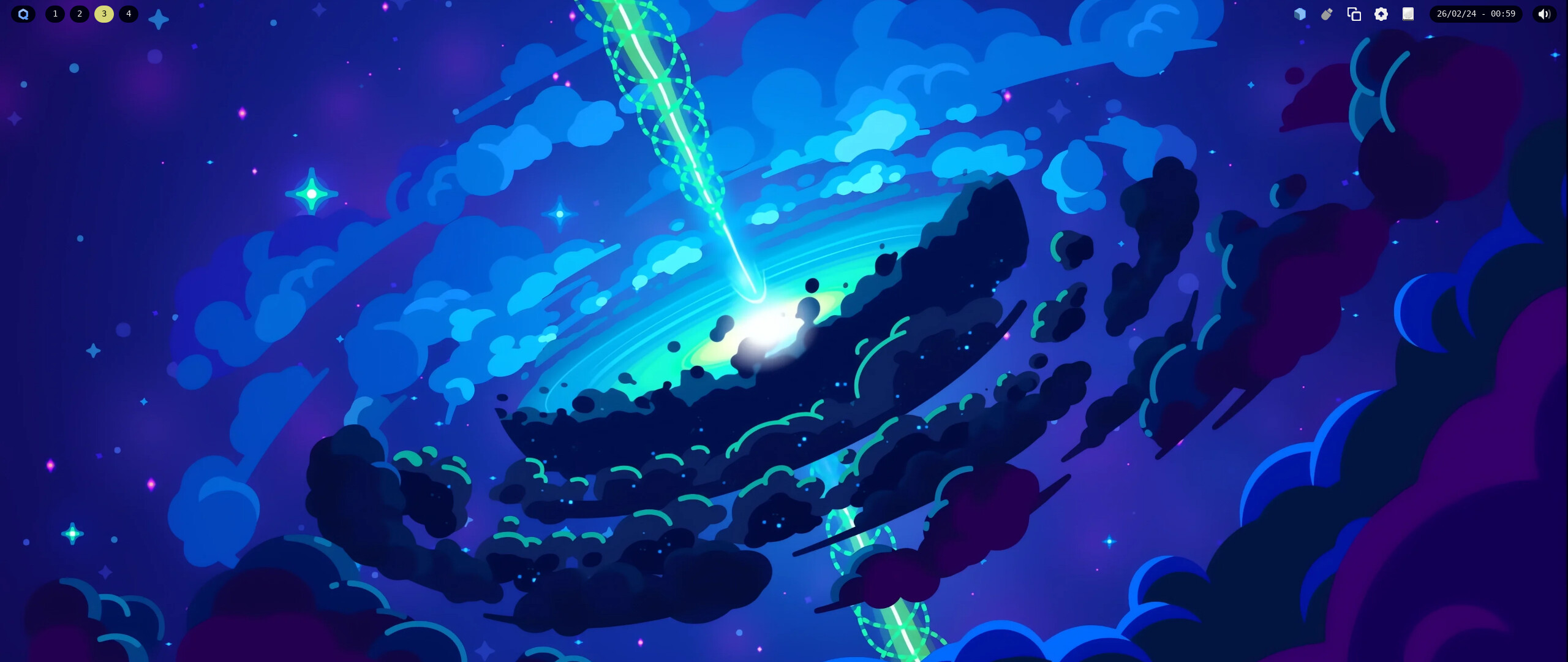
The final result is this:
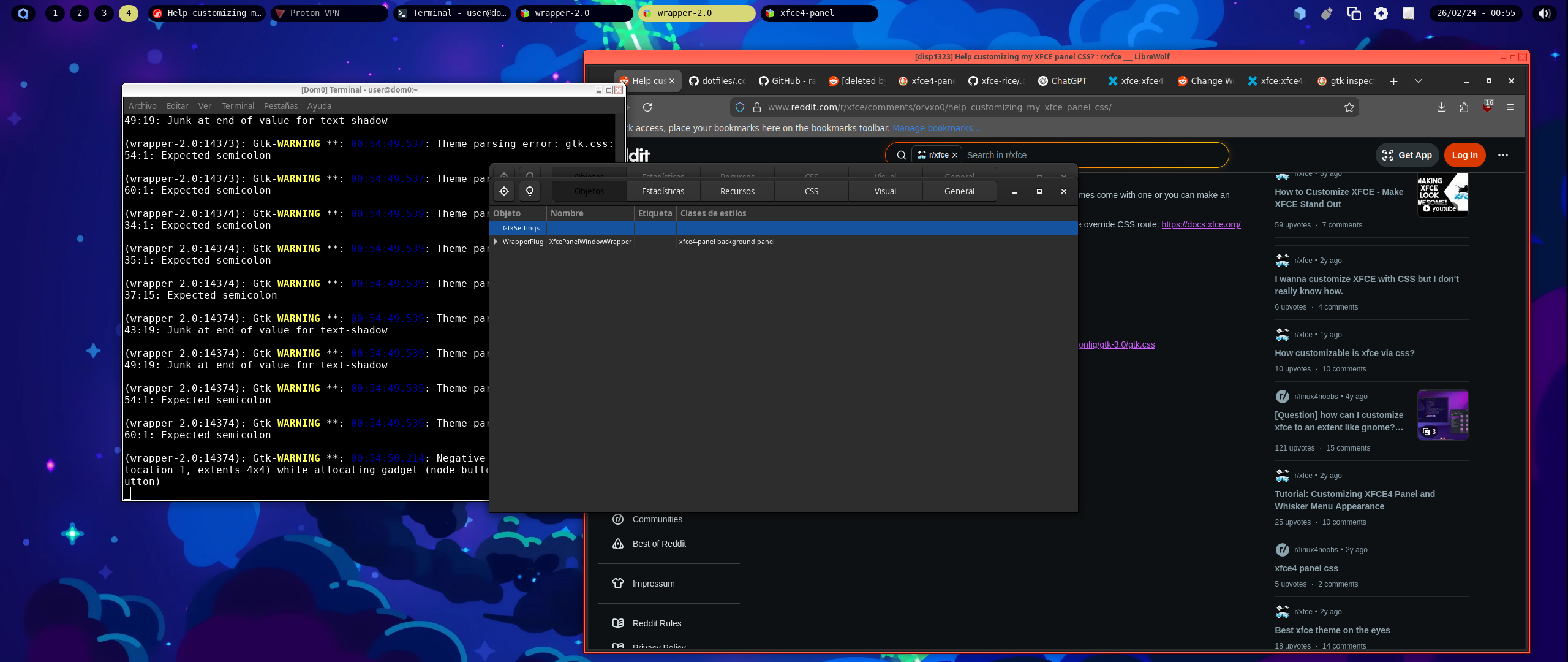
First, open a Terminal in dom0. This tutorial is done exclusively here, and if you follow step by step you won’t break nothing because we are using native things.
Okay we are going to create a panel bar with gaps between the screen/windows and the panel itself.
This is not supported at all in xfce, but we can create a transparent panel and add some margins to the items inside, without them being transparent, so everything looks gapped like the cool hyprland setups out there in reddit.
Run the command xfce4-panel --preferences so you can edit the panel.
Now, increase the height of the panel. I used 44 pixels as you can see:
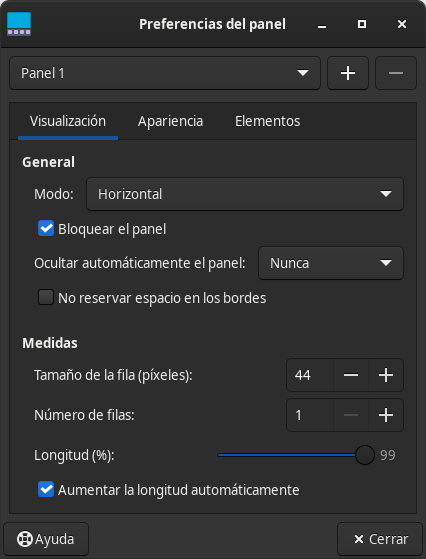
I also set the length at 99% so it creates gaps horizontally.
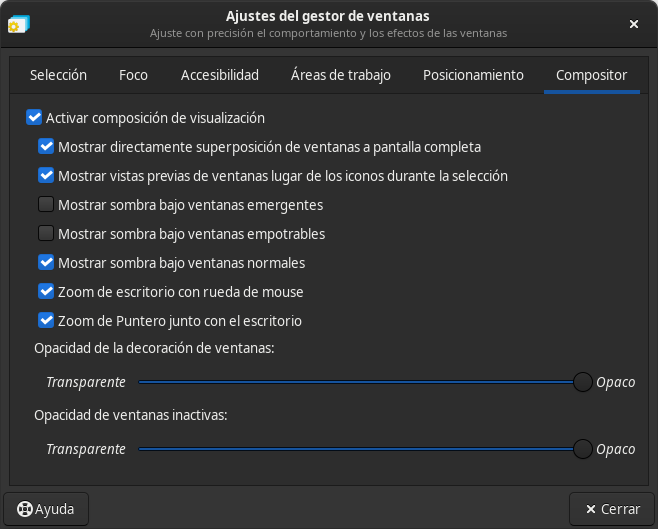
Now, I disable the shadows in the xfce4-panel. Run xfwm4-tweaks-settings and navigate to compositor. Disable the second shadow option “Mostrar sombra bajo ventanas empotrables” (sorry for the spanish):
You are almost done. Now, transform the workstation shifter from boxes showing the open windows to a grid of numbered buttons. To do so, right-click the workspace shifter and go to properties. A window like this should pop:
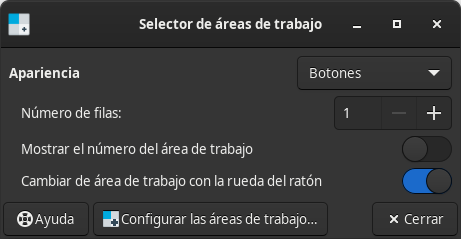
Under appareance, select “Buttons”, and get the switches just like me.
Then, go to “Configure workspaces” (the button in the middle at the bottom between the Help and Close buttons). Name the workspaces like me to have them numbered, and remember to leave a blank space before and after the number so it has some kind of a padding
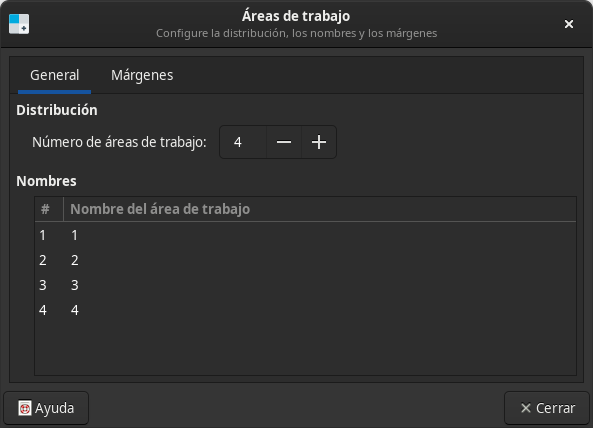
Final step, create a file at ~/.config/gtk-3.0/gtk.css with this content:
/* *
 * Inspo:
 * https://github.com/raven2cz/dotfiles/blob/main/.config/gtk-3.0/gtk.css
 * https://github.com/diws1/xfce-rice/blob/main/.config/gtk-3.0/gtk.css
 * https://docs.xfce.org/xfce/xfce4-panel/theming
 * ChatGPT
 * */

/* *
 * HOW TO INSPECT CSS ELEMENTS IN THE XFCE4-PANEL
 * 1. Kill the panel with `xfce4-panel -q`
 * 2. Run it with DEBUG: `GTK_DEBUG=interactive xfce4-panel`
 * */


/* Transparent XFCE Panel */
.xfce4-panel {
	background-color: rgba(255, 255, 255, 0);
	border: 0px;
	font-family: "Consolas";
	font-size: 14px;
}

.xfce4-panel .tasklist {
	background-color: rgba(255, 0, 0, 1);
}

/* Round buttons inside panel */
.xfce4-panel button {
	background-color: rgba(0, 0, 20, 1);
	background-image: none;
	border: 0px;
	border-radius: 16px;
	//margin-left: 4px;
	//margin-right: 4px;
	margin: 8px 4px;
	padding: 4px; // Make some space for the image inside the button
}

button:checked {
	background-color: rgba(215, 215, 120, 1);
	color: black;
	text-shadow: none !important;
}

button:hover {
	background-color: rgba(210, 210, 210, 1);
	color: black;
	text-shadow: none !important;
}

/* Clock button rules override */
#clock-button {
	//background-color: rgba(255, 0, 0, 1);
}


/* Pulse audio button rules override */
#pulseaudio-button {
	//background-color: rgba(0, 255, 0, 1);
	padding: 0px;
}

#pulseaudio-button image {
	-gtk-icon-transform: scale(0.5);
}

/* Qubes menu button */
#launcher-arrow {
	padding: 0px;
}

#launcher-arrow image {
	-gtk-icon-transform: scale(0.5);
}

/* Pager a.k.a. workspace shifter */
wnck-pager {
	background-color: rgba(255, 255, 255, 1);
	margin: 4px;
	padding: 4px;
}

wnck-pager:hover {
	background-color: rgba(120, 120, 120, 1);
}

wnck-pager:selected {
	background-color: rgba(0, 0, 0, 1);
}

/* System tray */
#sn-button {
	background-color: rgba(255, 0, 0, 1);
}
Run xfce4-panel --restart and everything will apply.
To create the CSS I have looked upon the files of other XFCE users, checked out the documentation and asked ChatGPT.
You can find the references to other repos at the beginning of the CSS file.
If you are having issues finding a CSS item to modify it, run
xfce4-panel -q to kill the panel.
Now restart it with GTK_DEBUG=interactive xfce4-panel, so the GTK_DEBUG environment variable is set and a GTK Inspector opens up, helping you to select items and view their info like their CSS name, their values, etc…
I hoped you liked the tutorial.
I will be posting more ricing things once I get to know how to modify other things of the OS.
TNT
Edit:
In case you want the same item distribution in the xfce4-panel as me, this is what I’m doing
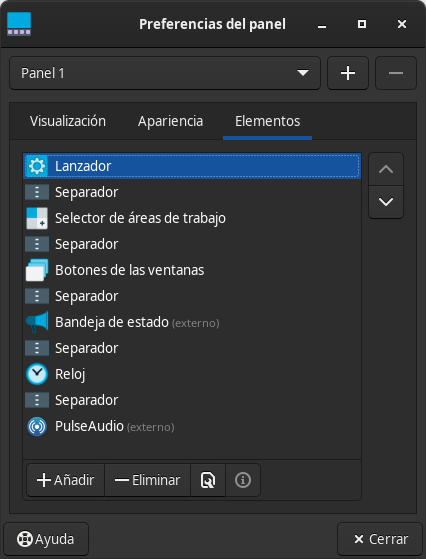
All separators are invisible, including the one of the “Windows buttons”, which you have to make it invisible by going to xfce4-panel --preferences > Elements > double left-click the “Windows buttons” or whatever is called, and then disable the “Mostrar los tiradores” switch (again, sorry for the spanish)
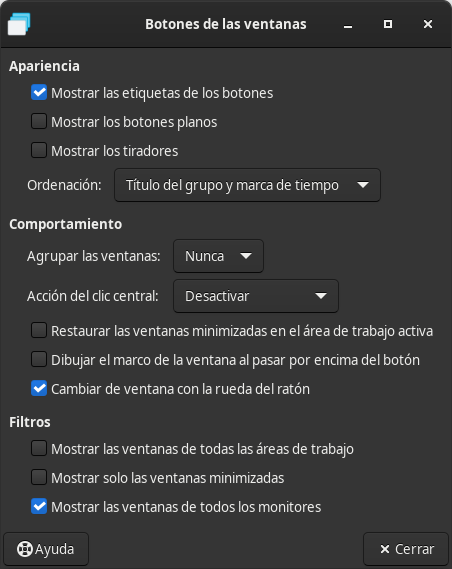
Also, for the clock, right click it, go to properties and use the same config as me:
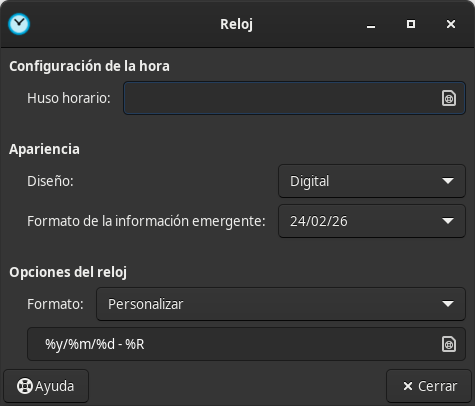
Same as the workstation shifter, I use a blank space at the beginning of the date and at the end as a padding, so the clock looks nicer.
Finally, improve the visibility of the status tray icons (buttos for USB passthroughs, Internet connection, etc…) by right clicking between them (just don’t click over one of those), then hit properties and enable “Elementos cuadrados” (“squared elements”?)
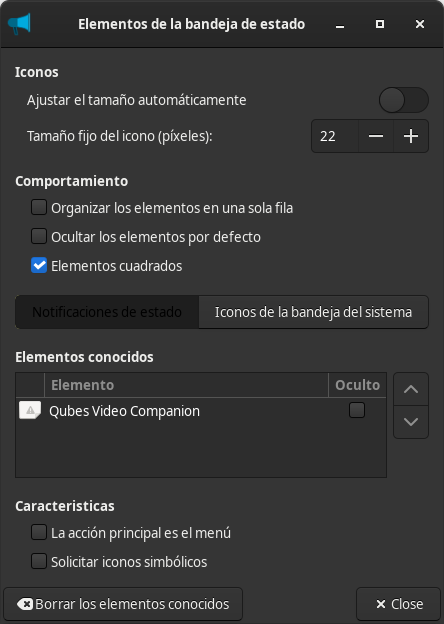
This creates some space between them, so they are more easily spottable. You can also change the size of the icons in this menu.
TODO:
Find a way to improve the icons of the “Wi-Fi” and “Ethernet” status tray icons. They have a white background that I would like to remove, maybe I am able to do that…
EDIT 2:
I’m lazy and I’m not rewriting everything again…
I’ve done this little tweak and now everything looks even nicer
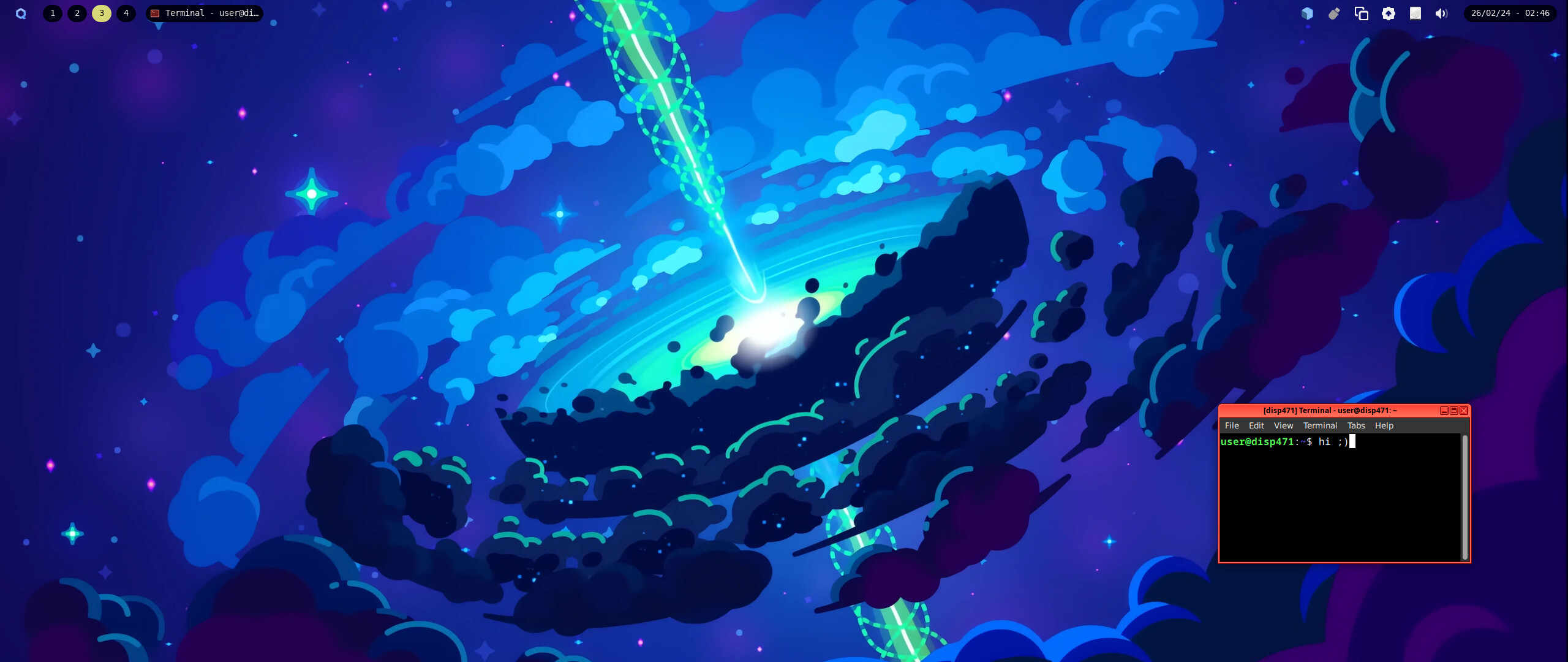
- Change the positions of clock and pulseaudio volume icon. Remember to keep the separators between them
- Set the CSS value of
#pulseaudio-buttonand#launcher-arrowto this:
#<name> {
    background-color: rgba(0, 0, 0, 0);
    padding: 0px;
    margin-left: 0px;
}
This removes the background color and removes the paddings/margins, so everything looks nice and tidy.
End of transmission  hahahah



