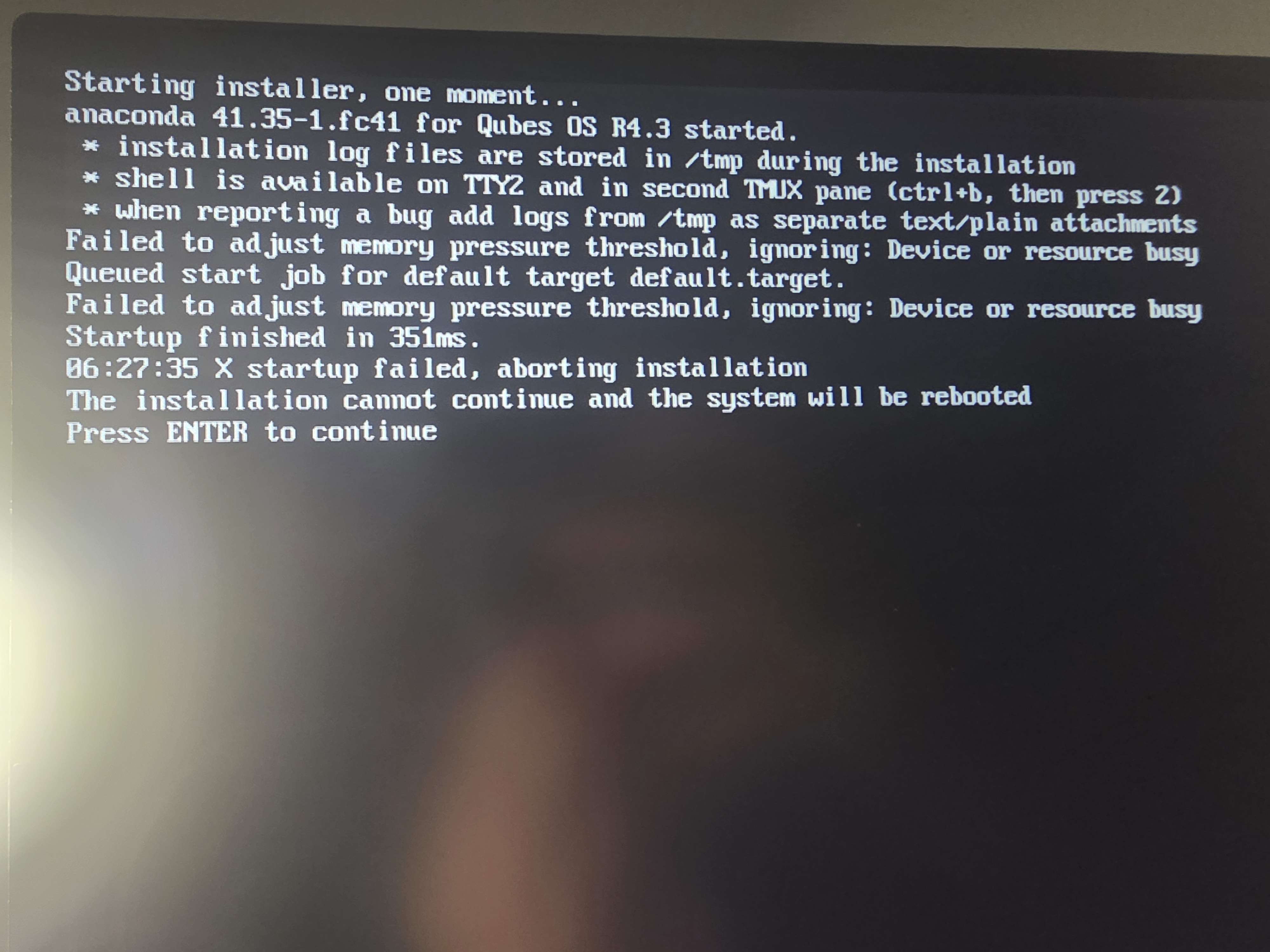
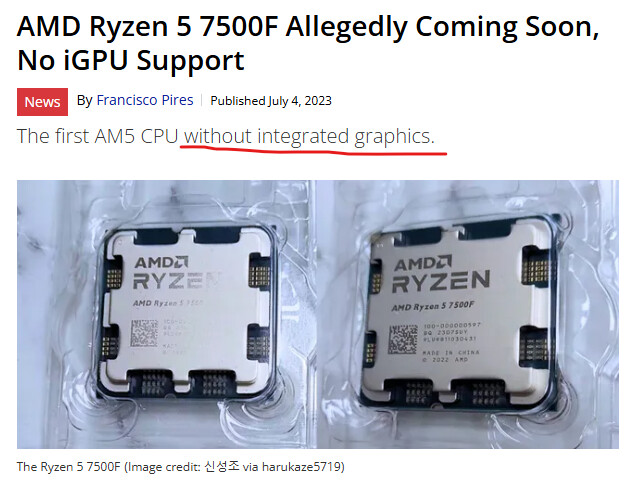
The screen shows that the Qubes OS graphical installer failed to start, resulting in the fatal error X startup failed, aborting installation. [1]
The primary cause is that the underlying display server (Xorg) cannot properly communicate with or initialize your graphics card (GPU). While the lines regarding Failed to adjust memory pressure threshold look alarming, they are standard systemd warnings and are not the cause of the crash. [1, 2, 3, 4]
How to Fix It
1. Use Basic Graphics Mode (Most Common Fix)
Forcing the installer to use a safe VESA or basic display driver bypasses complex GPU initialization: [1, 2]
Reboot the installation USB.
On the initial GRUB boot menu, navigate down to the Troubleshooting option and select it.
Choose Install Qubes OS in basic graphics mode. [1]
2. Adjust Boot Parameters (For Dedicated GPUs)
If you are using a dedicated Nvidia or an unmapped Intel/AMD graphics card, the kernel parameters may need tweaking: [1, 2]
Highlight the standard Install Qubes OS option and press e (or Tab depending on your boot configuration) to edit the parameters.
Find the line starting with module2 /images/pxeboot/vmlinuz...
Append nomodeset to the end of that kernel line.
If you have an Intel processor with integrated graphics, changing or verifying the parameter to utilize xdriver=intel or removing quiet can provide cleaner debug feedback. [1, 2, 3]
3. Check Motherboard / UEFI Compatibility
Toggle Boot Mode: The Qubes OS installer can behave erratically based on your motherboard setup. Try switching your BIOS from UEFI only to Legacy/CSM, or vice versa.
Disable Secure Boot: Ensure that Secure Boot is disabled in your system’s BIOS settings.
Enable Virtualization: Confirm that VT-d / IOMMU and VT-x / AMD-V virtualization extensions are fully enabled in your BIOS. [1, 2, 3, 4, 5]