Improving white background systray icons for dark themes

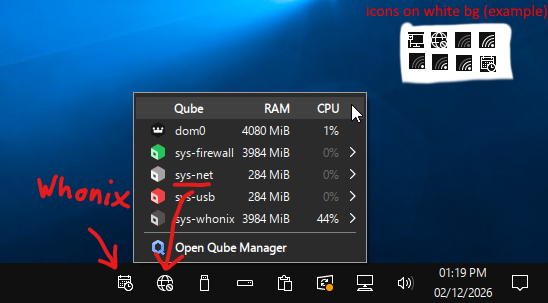
I had to deal with this when making my own Qubes theme. The only decent workaround I could find was adding a background layer behind each icon you want to fix, which is what the original post is explaining. However, renehoj is explaining how to do it for SVG/vector images, but your icons might be PNG/raster. Here’s what you need to do:

  • Locate the icon. You can usually find all installed system themes in /usr/share/icons. Programs bundled with their own icons usually show up in /usr/share/icons/hicolor (such as Network Manager). You can also ask AI to quickly research the source code of some programs and give you the name of the icon.
  • Figure out the specific icon size the system tray is using. Themes have the ability to swap icons depending on the desired size. This is usually used to perfect antialiasing/readability on raster themes. For your case, you only want to add a background to the specific size icon the tray uses, so it doesn’t affect the icon if it shows up at different sizes. (It’s usually 16x16 or the closest to 16x16 by the way.)
  • If the icon is PNG, open it in an image editor of your choice and put a background layer behind it which is the same color as your taskbar. If it’s SVG, you can probably follow what renehoj said.
  • (OPTIONAL) If you want your icon to be monochrome instead of being colored by the Qube, set your Qube color to gray for good results on dark theme taskbars.
  • Replace (or add if the icon was in hicolor) the specific icon in your active theme with the one that you just made. Make sure it’s the correct size. Keep in mind that most AppVMs use root directories from the template, so you might need to copy the theme to your user directories (and apply it) if you want it to be permanent.
  • Reboot/restart program and it should work.

Also for the people asking about modifying the Whonix icon, copy your icons to the Whonix Gateway like any other VM and use " qvm-run -u root whonix-gateway-18 ‘pcmanfm-qt’ " to open an administrator file explorer.
4 Likes

@honu thank you very much for your detailed explanation!

Unfortunately, I am still not able to master the first step.

My setup:

Adwaita-dark

d13m-network-disp     # standard template qube (debian-13-minimal clone)
 └─ d13m-network      # disposable template qube
     └─ network-disp  # disposable proxy qube

In network-disp terminal

ps -eo pid,user,comm,args | grep -iE 'network|nm' | grep -v grep

returns the my ‘network’ and ‘nm’ processes:

671 root     NetworkManager  /usr/sbin/NetworkManager --no-daemon
920 user     show-hide-nm-ap /bin/sh /usr/lib/qubes/show-hide-nm-applet.sh
934 user     nm-applet       nm-applet

Ask nm‑applet to print the icon path:

NM_DEBUG=all /usr/lib/qubes/show-hide-nm-applet.sh --debug 2>&1 | grep -i 'icon-path'

and

NM_DEBUG=all nm-applet --debug 2>&1 | grep -i 'icon-path'

returns nothing.

My guess, the minimal template uses some fallback icon solution.

I also created a standalone qube icon-test based on debian-13 (default, not the minimal template). Checking the /usr/share/icons/Adwaita directory:

16x16
cursor.theme
index.theme
symbolic
cursors
icon-theme.cache
scalable

checking the 16x16 folder:

devices
emblems
mimetypes
places

does not contain any network icons.

Could you please point me to the right directory?

Or, since you are using non-default icons, could you describe how you copy and link these icons to the network qube?

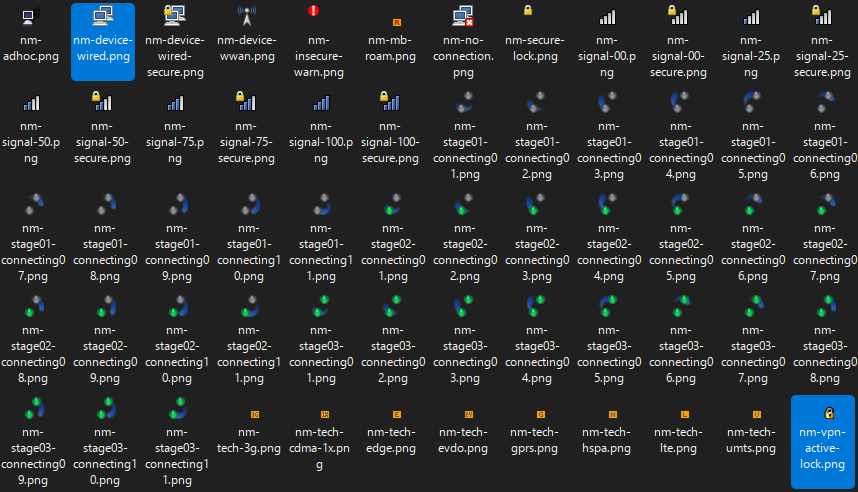
The two icons you have look like the 22x22px versions of nm-device-wired and nm-device-wired with nm-vpn-active-lock layered on top of it. I was able to find them in /usr/share/icons/hicolor/22x22/apps/ on the default Debian template. I’m assuming it’ll be the same for minimal Debian.


To clarify, most custom icons included with software/packages (such as Network Manager, Telegram, Discord, etc) get placed in hicolor or a similar subdirectory in /usr/share/icons. If you’re programming a package like Network Manager, you wouldn’t want to stick your icons in all the available system themes, that’s messy. The hicolor folder is frequently used because it is the main fallback theme. If a requested icon doesn’t exist it usually falls back like this:

Custom Theme → Adwaita → Adwaita Legacy (hidden theme) → hicolor (hidden theme)

To change the icon, all you need to do is add it or modify it in any place in this chain. You should be able to find/target most application tray icons this way. However, some applications have their icons compiled in the binary, so you can’t change them without re-compiling or patching. Additionally, other applications might need to be installed to the user instead, where it’ll place the icon in a non-root folder. These are pretty uncommon though. The most common icon issue for Qubes users would probably be Veracrypt, since I believe that’s compiled.

To reiterate, if you’re modifying icons in root, make sure you’re modifying it in a template or else it won’t persist. Also make sure your custom icons have the correct Linux permissions, as that can also be a problem. The other option is to make a quick custom user icon theme (in ~/.icons) which sounds overwhelming but it really isn’t. All you have to do is observe a different icon theme and you can probably infer how it works/copy it. You can make missing icons fall back to any theme you want by defining the “Inherits” field in the index.theme file. Not to shamelessly plug, but you can probably reverse how my Qubes theme works if you’re really having trouble. I’ll attach a post below. There’s more details about icon and XFWM theming for Qubes under the thread as well. I measured the pixels of your screenshot and your tray seems to be using 22x22 icons, so it’ll request icons closest to that value if there isn’t an exact match. Your taskbar also seems to be hex color code #353535. Hope this helps.

4 Likes

Big thank you for all your explanations! :+1:

1 Like