In English:
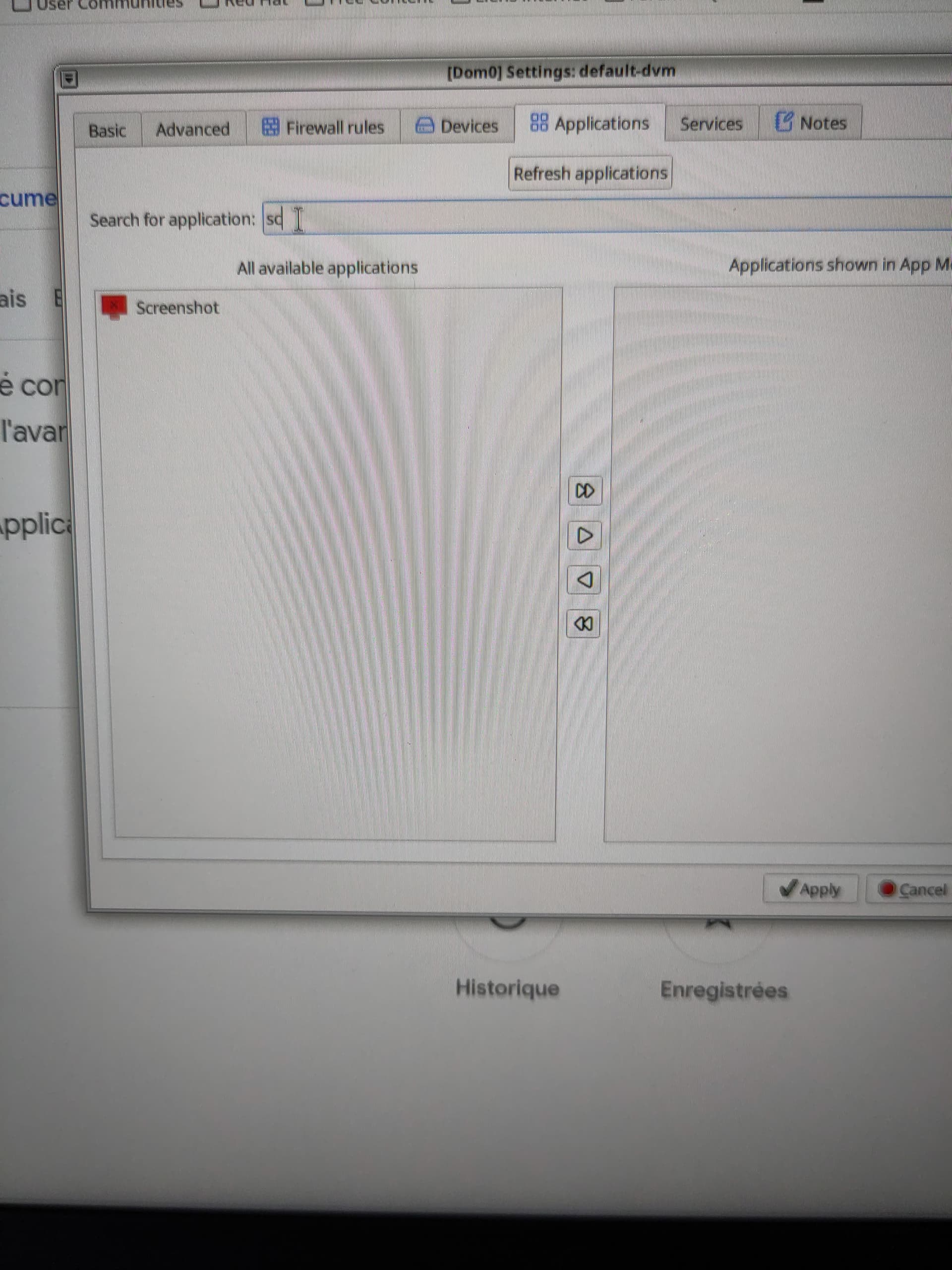
Hi everyone. I figured out how to take a screenshot in the “Default dvm” Qube, which has the advantage of having an internet connection. Here’s the tutorial:
- Click on “Open Qubes Application Menu”.
- Click on the “default-dvm” Qube.
- Click on Settings.
- In the “Search for application” field, type “screenshot”.
In “All available applications”, click on “Screenshot”. Click the “Add selected” button to add the “Screenshot” application to the “Application shown in App Menu”.
Then click the “OK” button.
Repeat the same steps with the following applications:
- Clipboard Manager.
- Thunar File Manager.
See the images.
En français / in french:
Salut tout le monde. J’ai trouvé comment faire une capture d’écran dans le "qube “Default dvm” qui a l’avantage d’avoir une connection internet. Voici tutoriel:
- Cliquez sur “Open Qubes Application Menu”.
- Cliquez sur le qube “default-dvm”
- Cliquez sur Settings
- Dans la zone de saisie “Search for application”, tapez en anglais “screenshot” qui se traduit par “capture d’écran” en français.
Dans la “All available applications”, puis cliquez sur “Screenshot”. Cliquez sur le bouton “Add selected” pour ajouté l’application “Screenshot” dans la zone “Application shown in App Menu”.
Ensuite cliquez sur le bouton “OK”.
Répétez les même actions avec les applications:
-Clipboard Manager (Gestionnaire du presse papier en français).
-Thunar File Manager (Gestionnaire de fichier en français).
Regardez les images.