I’m sorry. I didn’t mean to critize your work in a bad way. I might have been a little lazy and should’ve been careful choosing my words. In time, i will try again then post an update. Thanks for your reply.
Hi linuxuser1, thank you for the post. I have followed your guide and setup donut browser successfully. I will post my steps. Hope that you would not mind.
Hi zhom, thank you for creating Donut Browser.
Hi all, this is my first post/reply in this forum.
1) Create a debian-13-minimal template with the necessary packages installed.
To install the template debian-13-minimal, we need to have the repository qubes-templates-itl-testing enabled.
In dom0 terminal, run:
sudo qubes-dom0-update qubes-template-debian-13-minimal
Clone the template debian-13-minimal and name it as d13m-antidetect
qvm-clone debian-13-minimal d13m-antidetect
Start the template:
qvm-run -u root d13m-antidetect xterm&
In d13m-antidetect’s terminal, install the following packages:
apt install qubes-core-agent-networking qubes-core-agent-passwordless-root wget
Download the donut browser .deb (AppImage does’t work for me)
https_proxy=http://127.0.0.1:8082 wget https://github.com/zhom/donutbrowser/releases/download/v0.12.2/Donut.Browser_0.12.2_amd64.deb
Install the donut browser
apt install ./Donut.Browser_0.12.2_amd64.deb
Shutdown the template
poweroff
2) Create a disposable template
In dom0 terminal, run:
qvm-create --label=red --template d13m-antidetect d13m-antidetect-dvm
qvm-prefs d13m-antidetect-dvm template_for_dispvms True
In Qube Manager, right click on d13m-antidetect-dvm, choose Settings, at the bottom of the Basic tab, increase the Private storage max size from 2.0 GiB to 3.0 GiB. Click OK to save the settings and quit the Qube Manager. (The download and extraction of the camoufox on the later steps may use up all the storage.)
Now, launch the the disposable template ‘d13m-antidetect-dvm’ and make customization (install the camoufox). In dom0 terminal, run:
qvm-run d13m-antidetect-dvm xterm&
In d13m-antidetect-dvm terminal, run:
donutbrowser&
The initialization may take 30 seconds or more, just wait for it to finish. Click the ‘+’ icon, under ‘Anti-Detect’, click “Firefox” and it will start to update GeoIP database. After that, you can start to download the Camoufox. Once finished, you can set a profile name and save it. Close the donut browser and the disposable template. Everything is done.
3. Start the donut browser in a disposable VM
Now you can start a disposable VM based on the above dvm template. In dom0 terminal, run:
qvm-run --dispvm d13m-antidetect-dvm donutbrowser&
Click the ‘+’ icon and create a Anti-Detect Browser profile. Choose Automatic to allow the donut browser to generate "random“ fingerprint. Give a profile name and save it. Click ‘…’ → ‘configure fingerprint’ to view or customize it. Launch the browser and verify the fingerprint.
4 Likes
Hi! Of course I’m not mind! I will even add a link to your guide in my own guide 
1 Like
Thanks! 
1 Like
I found a way to run the app image if you try the following on the command line,
./Donut.Browser_0.12.2_amd64.AppImage --appimage-extract-and-run
Use the option/switch --appimage-extract-and-run
Found the the information from reddit, https://www.reddit.com/r/Fedora/comments/13q2pyv/what_is_the_proper_way_to_install_appimages/
I hope this helps out a few that want to use the appimage.
2 Likes
Thank you! It launches appimage, but I just get a white window  (I use fedora-42-xfce). The terminal shows this:
[user@donat Downloads]$ ./Donut.Browser_0.12.2_amd64.AppImage --appimage-extract-and-run
Starting app update check at startup...
=== App Update Check ===
Current version: v0.12.2
Is nightly build: false
STABLE_RELEASE env: Some("true")
Background update not needed: last_update=1757831936, elapsed=0h, required=3h
Starting auto-update check with progress...
Starting background version update service (checking every 5 minutes for 3-hour intervals)
No browser updates needed
Background update not needed: last_update=1757831936, elapsed=0h, required=3h
No startup version update needed
Could not create default EGL display: EGL_BAD_PARAMETER. Aborting...
No unused binaries found to clean up
Periodic cleanup completed successfully
Fetched 100 releases from GitHub
Found 19 stable releases
Latest release: v0.12.2 (Donut Browser v0.12.2)
Comparing versions: current=v0.12.2, new=v0.12.2, is_nightly=false
Stable comparison: v0.12.2 > v0.12.2 = false
No update needed
No app updates available

** (donutbrowser:2209): WARNING **: 08:39:40.898: atk-bridge: get_device_events_reply: unknown signature
You are correct. I tried it on Fedora and it only shows a white window. However it works on Debian. I am not sure what is causing the issue as my linux troubleshooting skills are limited. Checking GitHub · Where software is built and could not find any reports of this on zhom’s site.
Hi there! Thank you for the report. The logs show that the app has launched correctly and there is an issue with the UI. I can’t test Fedora xfce yet, but I will in the next few weeks and hope to fix this before November. Will also try to either address the AppImage issue or at least come up with instructions on how to get it running.
So far most issues on all Linux x64 systems are related to the framework (Tauri) I use to build the desktop app, so hopefully someone already solved all of the issues. Will likely not post any updates here to avoid posting even more off-topic, so if you’d like to get notified, you can create an issue on Github  Thanks!
1 Like
Iv’e found one problem.
if userAgent have different version than camoufox then it’s mismatch version detection
2 Likes
thank you!
Another thing. userAgent spoofing done by DonutBrowser give 75-85% fingerprint protection on https://browserscan.net
But, user-agent-switcher by ntninja gives 95-97% fingerprint protection.
So I’ve made 4 profiles for OSX, 4 profiles for Windows with static userAgent spoofing and one random - everything with ntninja add-on
Extensions increase the size of the fingerprint. If I were you, I would focus on these two scanners. If they produce a realistic fingerprint, then everything is great.
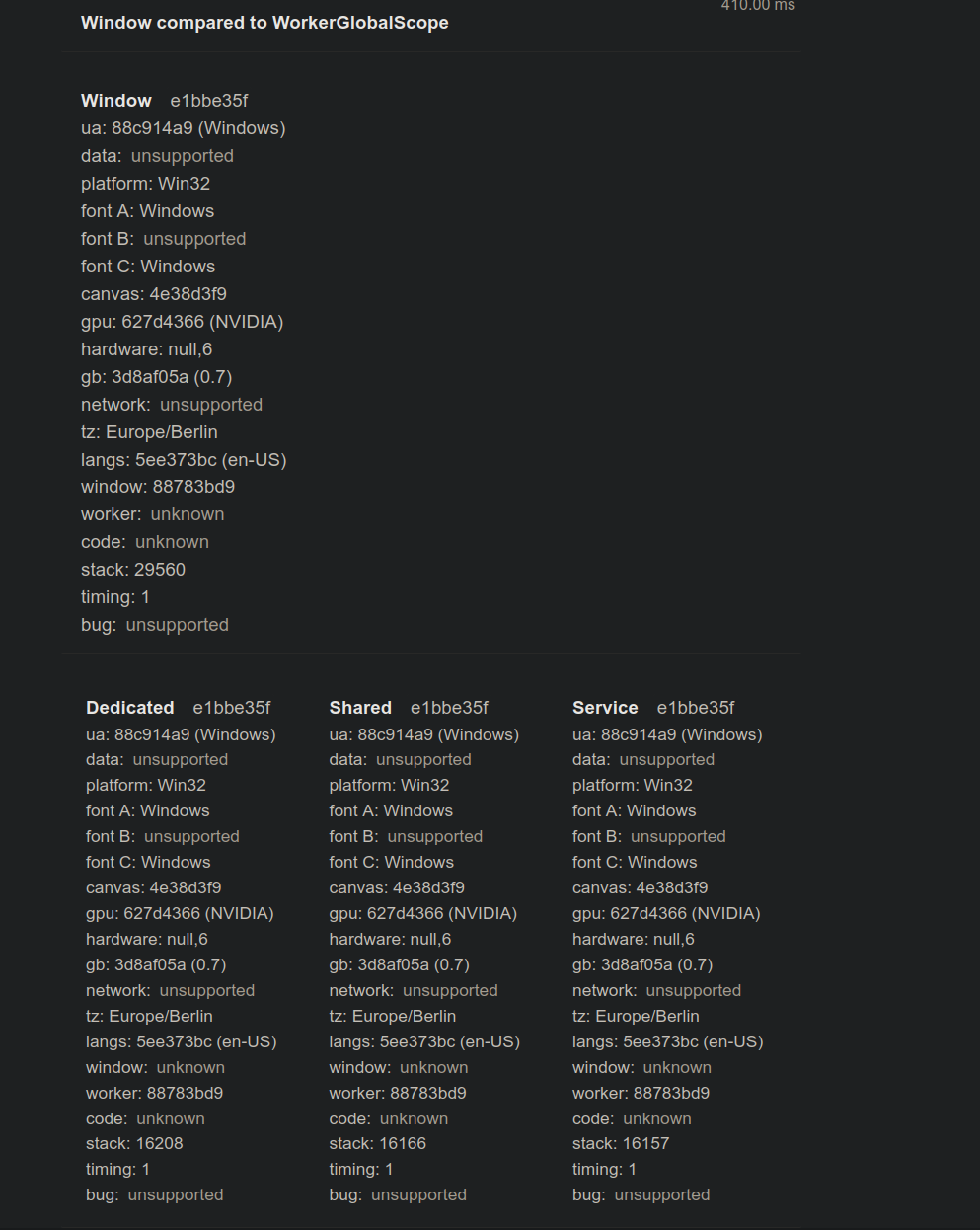
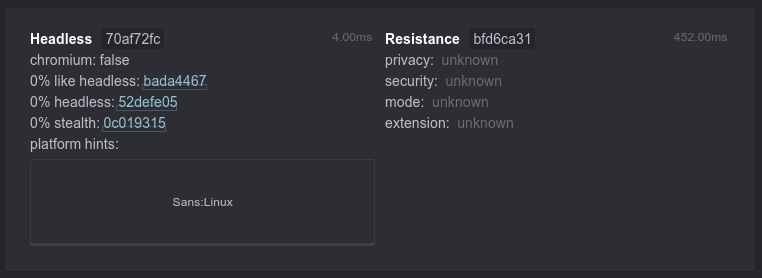
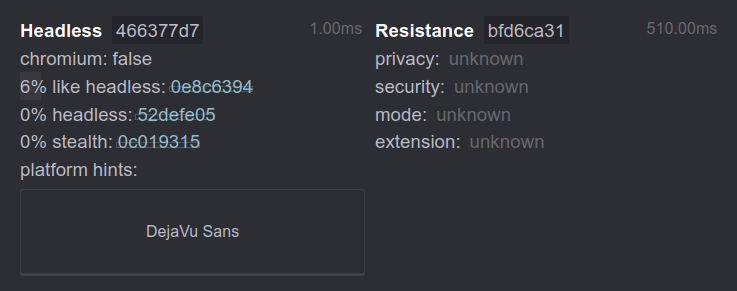
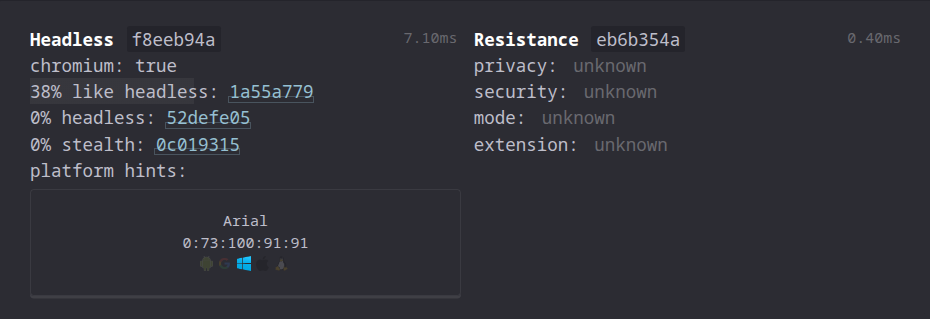
https://abrahamjuliot.github.io/creepjs/
https://arthuredelstein.github.io/tordemos/os-detection-font-css.html
I only use uBlock Origin and NoScript. Also, I found out that a Mac fingerprint is more detecteble than a Windows fingerprint in the Donate browser. Chromium couldn’t fool this scanner even with a Windows fingerprint: Demo of pure CSS OS detection via fonts
1 Like
With or without user-agent-switcher font is detected as Linux, but with user-agent-switcher userAgent part is reddish.
Font CSS is detecting Linux anyway
PS: but with same userAgent set in Donut Browser and in user-agent-switcher everything is good, except for linux font detected.
PS2: only with firefox profile on camoufox is ok (linux font detection)
You tried disabling the font in NoScript?
Pristine camoufox, no add-ons
1 Like
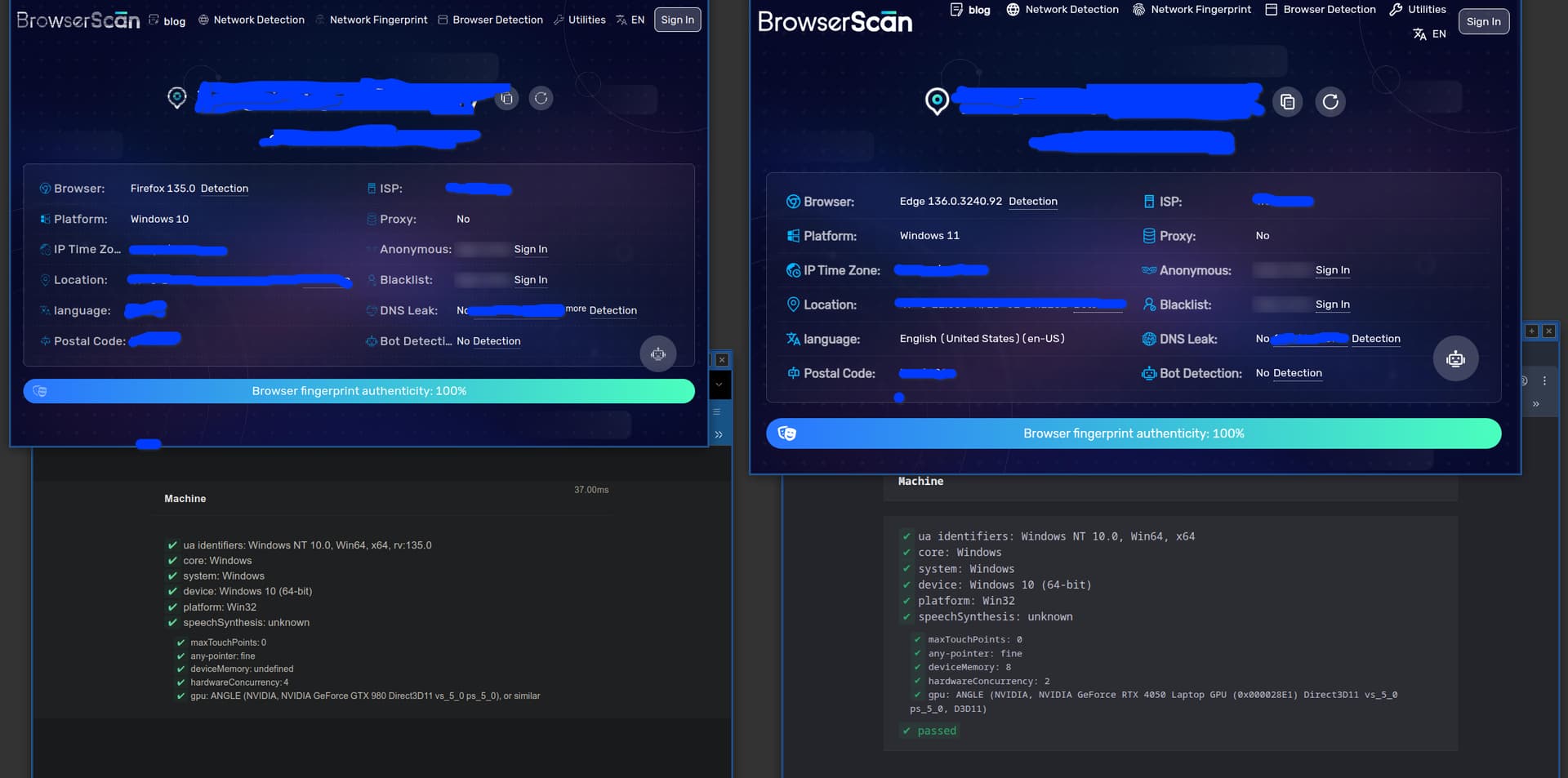
Ah, so on camoufox need to use Firefox profiles only and if I wan’t chrome profiles (Chrome, Edge) then I need to use/install antidetect-chromium.
Such information wasn’t available in “guide”
PS: check workers on creepjs page - it didn’t passed with user-agent-switcher and I wonder how it will pass with uBlock and noscript