A Guide to virtualise your Intel GPU. Heavily based on Lenovo ThinkPad T14 Gen 5 - #27 by tze.
The Output will still be send trough the normal QubesOS pipeline, so no extra Monitor is needed. ATTENTION: This Guide requires executing 3rd party Code in dom0 at Kernel priveleges (a driver). This can be a security risk depending on your threadmodell, but you also can check the code (if you understand a bit of programming).
All commands must be run in dom0.
You need this Patchset from Github. Pick the apropriate version for your Kernel (check for Kernel version with uname -a in a dom0 terminal) Download as ZIP or TAR
Copy the code to dom0 (via qvm-run -p [VM] "cat [Path/to/code]" > code, only works on files so you should use a ZIP or TAR Archive)
Uncompress ZIP or TAR (with unzip or tar -xaf)
Add to DKMS via sudo dkms add ./[path/to/unziped/code]
Install module via sudo dkms install i915-sriov-dkms/[version] (use TAB to Autocomplete)
Add the following to your GRUB Kernel commandline in /etc/defualt/grub: intel_iommu=on i915.enable_guc=3 i915.max_vfs=7 module_blacklist=xe (Variable named GRUB_CMDLINE_LINUX_DEFAULT)
Restart and when using HEADS or AEM do the respective steps of resigning your boot files.
Activate vGPUs with: echo 7 | sudo tee sys/devices/pci0000\:00/0000\:00\:02.0/sriov_numvfs (Assuming GPU is on PCI device 00:02.0 which is normal for an iGPU at least in my experience. In doubt check with lspci) You can use any value between 1-7 from my experience its better to choose as low as you can if you want to game.
Assign new GPU to respective VM.
Change VM Kernel to version used in dom0 (so the driver is also available to the VM. This may need the qubes-kernel-vm-support, though not realy clear why)
Change VM Kernelopts to enable driver: qvm-features [VM] boot-mode.kernelopts.sriov "i915.force_probe=XXXX i915.enable_guc=3' (as for the XXXX use your GPU device id you get this via cat "/sys/devices/pci000:00/0000:00:02.0/device", may not be needed) and change to the new Kernelopts via: qvm-features [VM] boot-mode.active sriov
Recheck if VM is using HVM mode and has enough RAM assigned. You should probably use static RAM assignment without memory balancing.
(maybe optional) Install the driver in your Template via DKMS. Required on some (probably most) systems, but not on all. You can check if there are any problems when starting the qube assigned with a vGPU. If there are non you can skip this step.
After that GPU acceleration should work in your VM. You can test with glxheads if your GPU is used.
Problems:
For me there is currently one strange Problem. On some Games the VM sometimes hangs on display output. This is not realy reproducible and depends on the game used.
While testing i encountered on game that wouldn’t run. Check my other Thread for more info on which games.
GPU acceleration for other things, like AI (the real one not LLMs), did work fine.
Troubleshooting
driver not picked up in AppVM
Check if the AppVM uses the same kernel as dom0 (otherwise the driver might simply not be included in the modules)
Check if firmware-intel-graphics is installed.
Try installing the Driver in the template via DKMS. For this you also need to setup kernel provided by qube.
rebinding issues
Since the vGPUs appear after QubesOS is booted, they shouldn’t be assigned the i915 or Xe drivers. If that isn’t the case add rd.qubes.hide_pci=[pci-device] to your Kernel boot parameters. You should include all vGPUs that are available as a comma separated list.
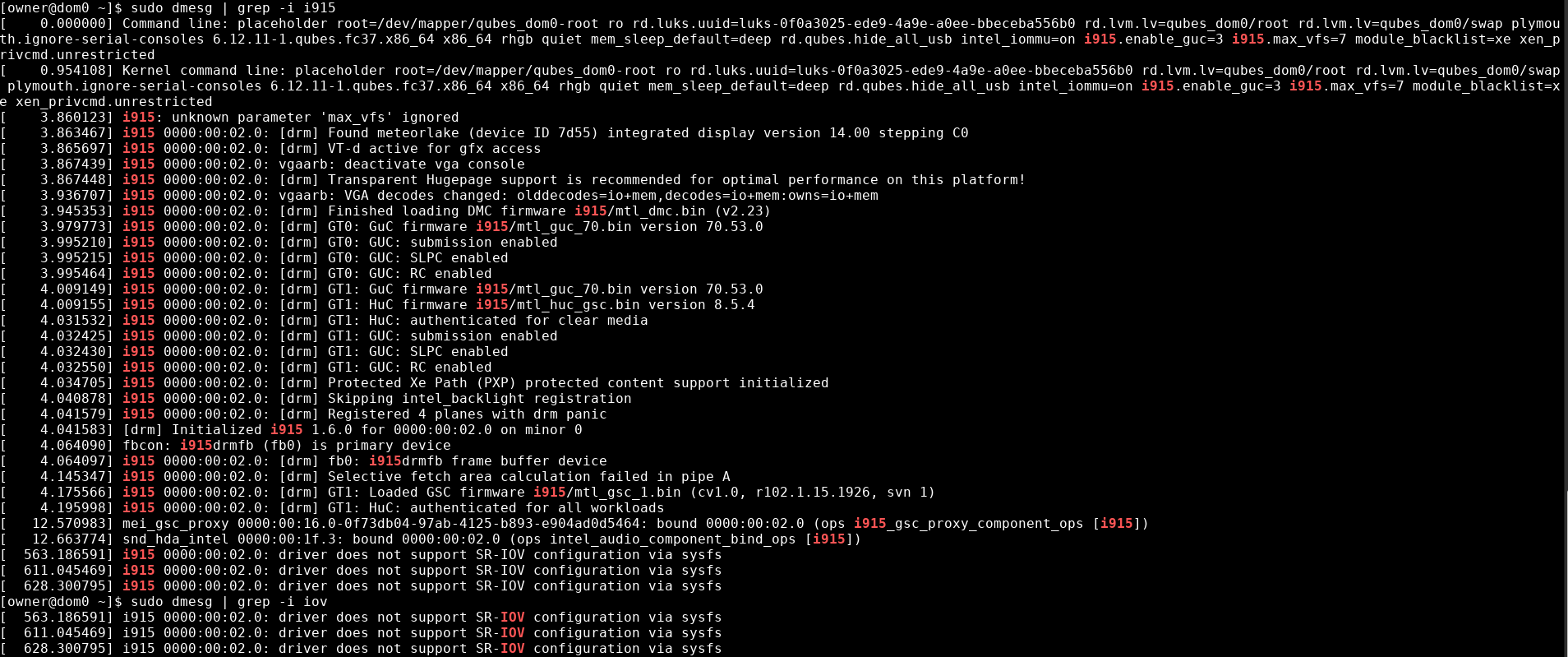
Cannot activate virtual gpus. Assuming that the module has not loaded correctly because the output in the first screenshot. Not sure how to proceed from here, any idea?
forget it, I found the issue. I did a kernel update but did not reboot. Then compiled the module with the “old” kernel version. That most likely is the culprit. Will try again.
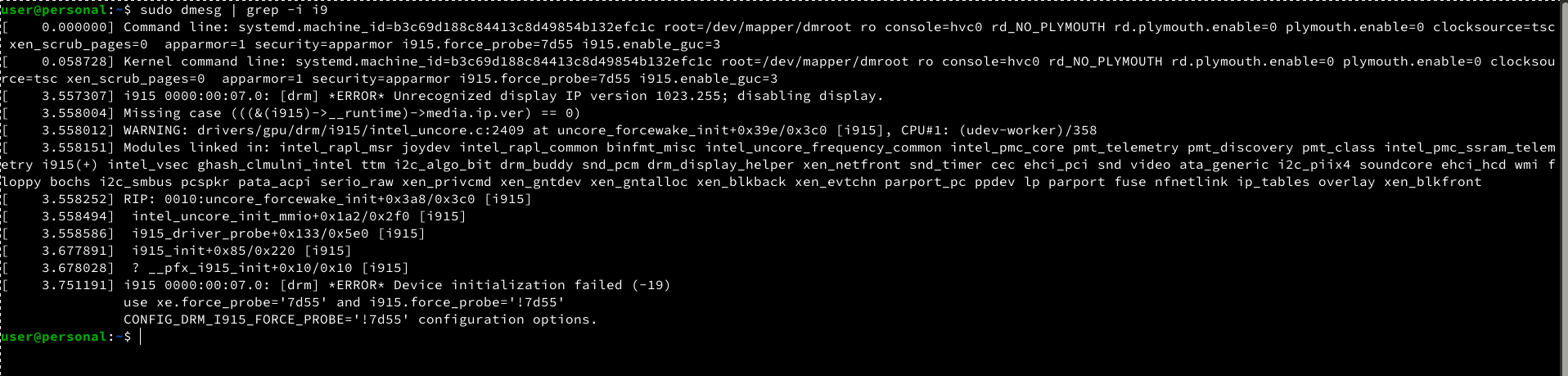
I have checked for the kernel versions in dom0 and vm, both same: The thing is that I had to choose the corresponding kernel version for VM directly, as “use kernel provided by qube” delivered a different one (older). Other than that I think I have done everything in the guide. Have you seen the error shown in the screenshot? Is the module nod loaded?
Uh, looks like the i915 driver didn’t load for you. You can try if running the Xe variant works using this xe.max_vfs=7 xe.force_probe=${device_id} module_blacklist=i915 for GRUB_CMDLINE_LINUX_DEFAULT.
Despite that, did you check if you downloaded the correct version for your Kernel?
The driver works correctly in dom0, I am able to create virtual gpus and assign them to guests. Therefore I think it is correct
Will try your suggestion, thanks!
Ah, wait, your suggestion is related to dom0, correct? There everything works fine. My guest is giving me this error when it starts and is not able to use the assigned vgpu.
So then what i would check is, if your VM uses the Kernel with the modified driver, so the same as dom0.
Otherwise, you could try using the Xe driver there, you get the CMDLINE as an solutionhint in the last block ouf the output you posted. Also check if you have firmware-intel-graphics installed in your VM.
If this doesn’t work I would check what the other Guides for general GPU Passtrough mention for debuging steps.
I checked for “firmware-intel-graphics”, it is installed. Also tried the “xe” version, does not work.
What kernel are you currently using in dom0 and VM? If you updated your system recently, it should be the same as mine. Also, are you using the master of the i915 driver or the specific tag matching your kernel version?
What is the best way to check if the kernel has the modified module available in VM?
Thanks!
Ok, so I decided to give it a try and installed the kernel module on my guests template, and with that, the gpu is picked up correctly. Which means that using the same kernel as dom0 is not enough for it to work. This is also what other threads state, that the module must be there on the quest. Not sure why it works on your end, maybe you have some other setting in dom0 that allows to pass custom kernel modules to guests?
Anyways: gpu acceleration is great, browsing is so much smoother with it. Thanks for your help, it is much appreciated!
Bye
That is strange, because Qubes sould send the kernel including all modules to the VMs. So the driver should be included.
Did you need to set the VM Kernel to be provided by the VM, or did you manage to do it without. (The second case would make it even more strange).
Anyway i will update the guide to include this as troubleshooting option.
What I did was to set the VM kernel to the same version as dom0 (in my case 6.19.5.1). There I installed the deb binary from the module github page, which compiled the module and included it in the kernel folder. After a restart the vgpu was recognized correctly. This makes it possible to keep the static kernel version in VM even if dom0 gets updated.
I am unsure how the “kernel provided by dom0” exactly works and if custom modules are really pushed to the vm. Maybe the QubesOS devs can clarify if that should work and what are the prerequisits.
The 3rd point of the troubleshooting guide is not exactly true. You can configure any kernel version to be used in VM. A static version makes sense as otherwise any update of the vm might cause the module to get “lost” and one has to recompile it again.
even with the deb package it is installed via dkms under the hood. That requires at least according to the official documentation kernel and initramfs provided by the Qube. I still dont’t understand why loading the module this way worked for you and will keep the guide in a way that it doesn’t rely on “undocumented” behavior if not necessary.
Is it possible that the kernel files are copied to VMs during creation (and updated when a new kernel is installed in dom0)? That would explain why the new module was not there in my existing VMs and why installing it on a selected kernel inside the VM made it persist during reboots.
kernel, initramfs and modules are provided by dom0 at VM start.
But it might be, that those files also need to be regenerated, and when i installed it it happend automatically because of some update. Will investigate further.